All guides
Getting started
What is Submittal Kit Create Your Workspace Your First Project Search Everything The Dashboard Help and What's New Abbreviations We UnderstandProjects & Schedule
Project Settings Schedule and MilestonesEquipment Register
Equipment Register Basics Import a BOM Equipment DocumentsParts & Library
The Parts Library Part Documents Find Datasheets The Document Library Search Inside DocumentsSubmittals
Create a Submittal Configure Sections Choose Equipment Scope Compile a Submittal O&M Manuals Submittal Numbering Cover Pages Package LayoutsRevisions & Review
Issue a Revision Submittal Log Returned Reviews Comment Response Log Record an External Submittal Share with an outside reviewerRFIs
RFI Basics RFI Log RFI LayoutsField & QA
Punch Lists As-Built RedlinesSpecifications & Scope
Upload Specifications Spec CheckProcurement & Change Orders
Quotes and Purchase Orders Coverage and Lead Times Change Orders Budget and SOVDirectory & Team
Firms & Contacts Team & Access Personnel & CertificationsSettings & Billing
Company Identity Library Vocabulary Billing and PlansIntegrations
Connect an AgentHelp Directory & Team
View as MarkdownTeam & Access
Invite teammates, set who is an admin, and know exactly what each role can change.
Nobody wants a new hire's first week spent asking "who can add me, and what am I even on?" Invites here name the projects, and the first dashboard they see is their own board.
Invite a teammate
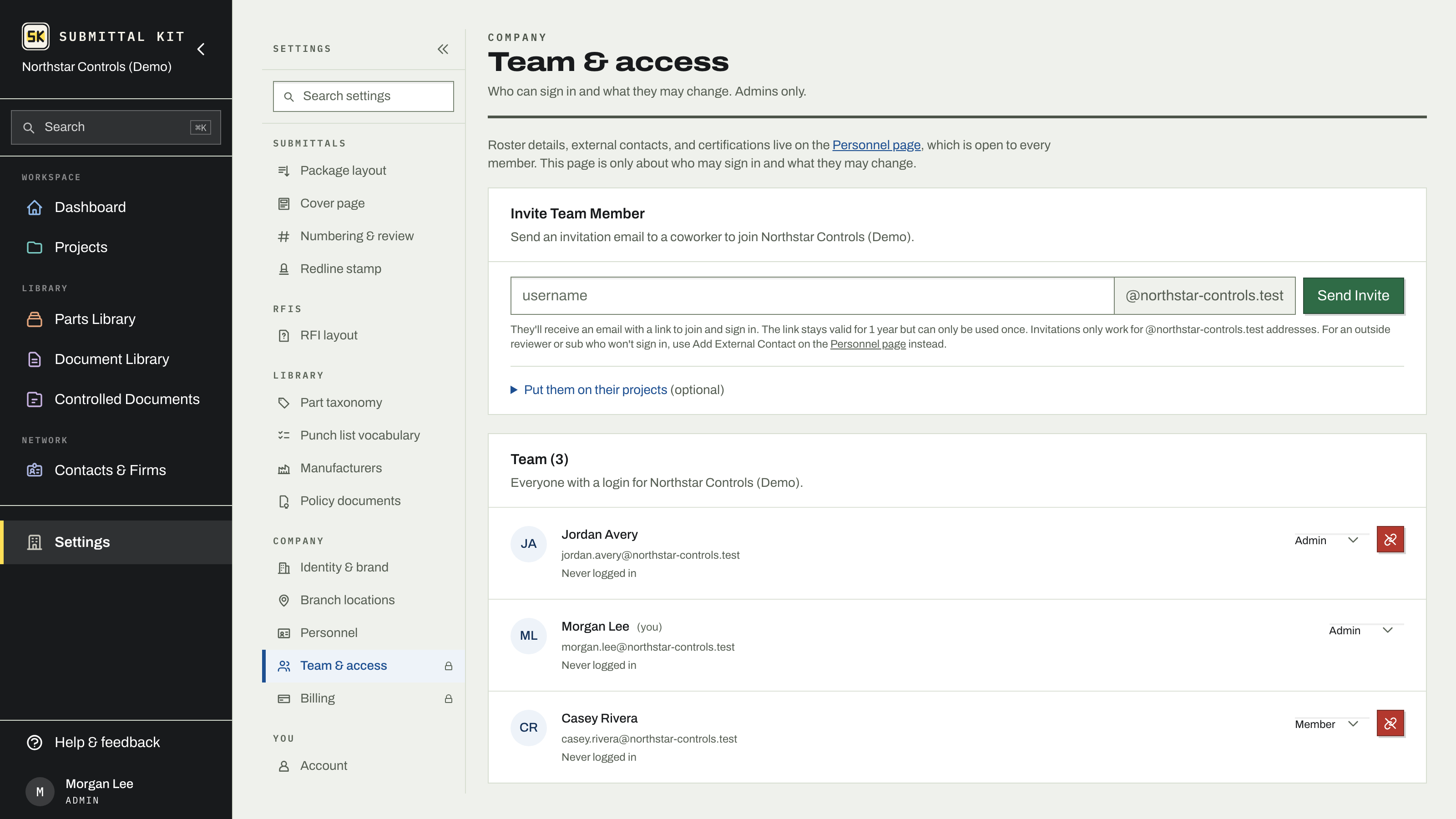
Admins can invite from Settings, Team & access:
- Enter the coworker's email username. Invitations only work for addresses at your company's domain; an outside reviewer or sub who will never sign in belongs on the Personnel page as an external contact instead.
- Optionally open Put them on their projects and tick the projects they are joining. The invitation email names those projects, and they appear on the new member's dashboard the first time they sign in. They can add or drop projects themselves afterwards.
- Send. The emailed link stays valid for a year but works exactly once.
Roles: admin and member
The roster lists everyone with a login, with a role dropdown beside each name. Admins can change anyone's role or remove a member (a removed member has to be re-invited to get back in).
Admin unlocks the settings that govern the whole workspace: this Team & access page, Billing & plans, and administrative company settings such as the company name and the numbering formats behind submittal and RFI identifiers (see Company identity).
Members get everything else, which is to say the actual work: projects, the Equipment Register, submittals, RFIs, punch lists, the document library, and shared defaults like package layouts and vocabulary lists. You do not need admin to run a project end to end.
Signing in
New members follow the invite link to join, then sign in with email and password. Forgot the password, or never set one? Request a sign-in link by email from the login page, then set a password from the sidebar once you are in.
If a teammate's name shows an amber "Name is a guess" flag on the roster, it was taken from their email address and is what printed pages would use. Setting the real name clears it everywhere; see Personnel & certifications.
Updated Aug 15, 2026
Can't find it? [email protected]