All guides
Getting started
What is Submittal Kit Create Your Workspace Your First Project Search Everything The Dashboard Help and What's New Abbreviations We UnderstandProjects & Schedule
Project Settings Schedule and MilestonesEquipment Register
Equipment Register Basics Import a BOM Equipment DocumentsParts & Library
The Parts Library Part Documents Find Datasheets The Document Library Search Inside DocumentsSubmittals
Create a Submittal Configure Sections Choose Equipment Scope Compile a Submittal O&M Manuals Submittal Numbering Cover Pages Package LayoutsRevisions & Review
Issue a Revision Submittal Log Returned Reviews Comment Response Log Record an External Submittal Share with an outside reviewerRFIs
RFI Basics RFI Log RFI LayoutsField & QA
Punch Lists As-Built RedlinesSpecifications & Scope
Upload Specifications Spec CheckProcurement & Change Orders
Quotes and Purchase Orders Coverage and Lead Times Change Orders Budget and SOVDirectory & Team
Firms & Contacts Team & Access Personnel & CertificationsSettings & Billing
Company Identity Library Vocabulary Billing and PlansIntegrations
Connect an AgentHelp Parts & Library
View as MarkdownThe Document Library
One entry per unique PDF, linked to the parts that use it, with duplicates caught on the way in.
Six copies of the same datasheet named DS_final(2).pdf, each linked somewhere different, is how packages go stale. The Document Library keeps one entry per unique file and points every part at it.
Browse the library
Open Documents to see every PDF your parts share: file name, type, size, linked parts, and when it was added. Search by file name or category; behind the filter disclosure, narrow by type (Datasheets, Manuals, Other) or show only files Not linked to any part, which is your cleanup list.
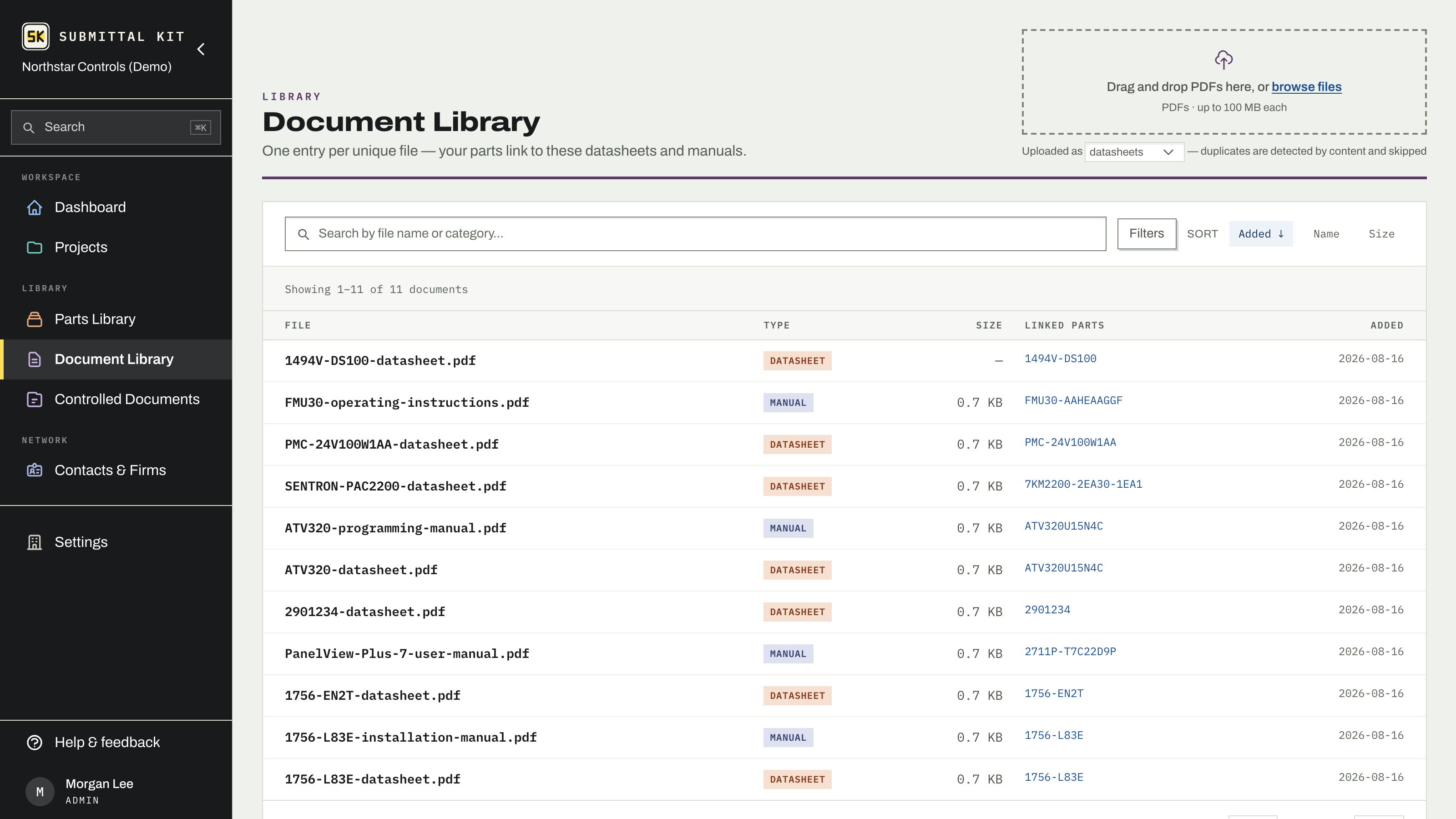
Upload without duplicates
Drop PDFs on the upload zone, or a whole folder of them with its subfolders, and pick how they file: as datasheets, manuals, or other. Re-uploading a file you already have always lands on the existing entry; a second copy is never created.
A vendor datasheet downloaded a second time is trickier, because the file differs even when the document doesn't. When a new upload reads the same as one you have, a Possible duplicate notice appears showing what it matched, when that was added, and links to open both, since two sheets in a product line can read alike and differ only in a photo. One click keeps the existing file and drops the copy, or Keep both if they really are different documents.
The document page
Open any file to manage it in one place:
- Link parts by searching, or unlink a part that no longer belongs; unlinking removes only that part's highlights on the file.
- Set the category, and for datasheets, Always full sheet, which ships the complete document even in Relevant Pages Only packages.
- Analyze all parts reruns page analysis for every linked part at once. See Part documents for what highlights and analysis do.
A library document can back parts across many projects, so editing a shared file's category or Always Full Sheet asks first, with live counts of the parts and projects linked to it. A document used in one place edits without ceremony.
Redact a header or footer
A manual pulled from an old job carries that job's name in every header, and it shouldn't ship on the next one. On the document page, Redact opens the file in the markup editor with one drawing tool: drag a box over the header, footer, or stamp to remove it. Each box picks what the emptied area shows: nothing, white, or black.
Redaction removes the text, images, and drawings under the box from every submittal and O&M manual that compiles the document, and from source document exports. A highlight that sat under a redaction is dropped too, so a catalog number found only in the removed area is reported as missing. The library keeps the original file, so the preview and Download still show it. Turn on As compiled in the editor to see the document the way it will ship.
Straight to the right page
Results from searching inside documents and links in highlight reviews open a document at the matched page, not page one, so a 90-page manual stops being a scrolling exercise.
Delete in bulk
Check the rows you want gone, or check the box in the bar above the list to take the whole page. With a page selected, Select all matching widens the selection to every document your search and filters match, across pages. Delete shows what will happen before anything does: unlinked documents go, and linked ones are kept unless you check the box to unlink them first and delete them too.
A single document with no linked parts can be deleted from its page. Anything still linked has to be unlinked first, which is exactly the friction you want in a shared library.
Updated Sep 23, 2026
Can't find it? [email protected]