All guides
Getting started
What is Submittal Kit Create Your Workspace Your First Project Search Everything The Dashboard Help and What's New Abbreviations We UnderstandProjects & Schedule
Project Settings Schedule and MilestonesEquipment Register
Equipment Register Basics Import a BOM Equipment DocumentsParts & Library
The Parts Library Part Documents Find Datasheets The Document Library Search Inside DocumentsSubmittals
Create a Submittal Configure Sections Choose Equipment Scope Compile a Submittal O&M Manuals Submittal Numbering Cover Pages Package LayoutsRevisions & Review
Issue a Revision Submittal Log Returned Reviews Comment Response Log Record an External Submittal Share with an outside reviewerRFIs
RFI Basics RFI Log RFI LayoutsField & QA
Punch Lists As-Built RedlinesSpecifications & Scope
Upload Specifications Spec CheckProcurement & Change Orders
Quotes and Purchase Orders Coverage and Lead Times Change Orders Budget and SOVDirectory & Team
Firms & Contacts Team & Access Personnel & CertificationsSettings & Billing
Company Identity Library Vocabulary Billing and PlansIntegrations
Connect an AgentHelp Settings & Billing
View as MarkdownCompany Identity
Set the logo, colors, name, and branch offices that print on every cover and generated page.
The company block on a cover page is the kind of thing that gets retyped per package, drifts per person, and embarrasses you per typo. Set it once in Settings and every compiled cover, RFI, and letterhead carries it automatically.
Identity and brand
Admins set these under Settings, Identity & brand. Members see the current logo and colors on the same page but cannot change them:
- Logo. Printed on cover pages, RFI layouts, and project-contact letterhead.
- Brand colors. Primary drives the band and headings on a cover; Accent drives secondary rules and captions. Leave either blank for a neutral gray default.
- Organization details. The company name prints on every cover and generated page. This page also shows your email domain (anyone signing in with it joins automatically) and your member count.
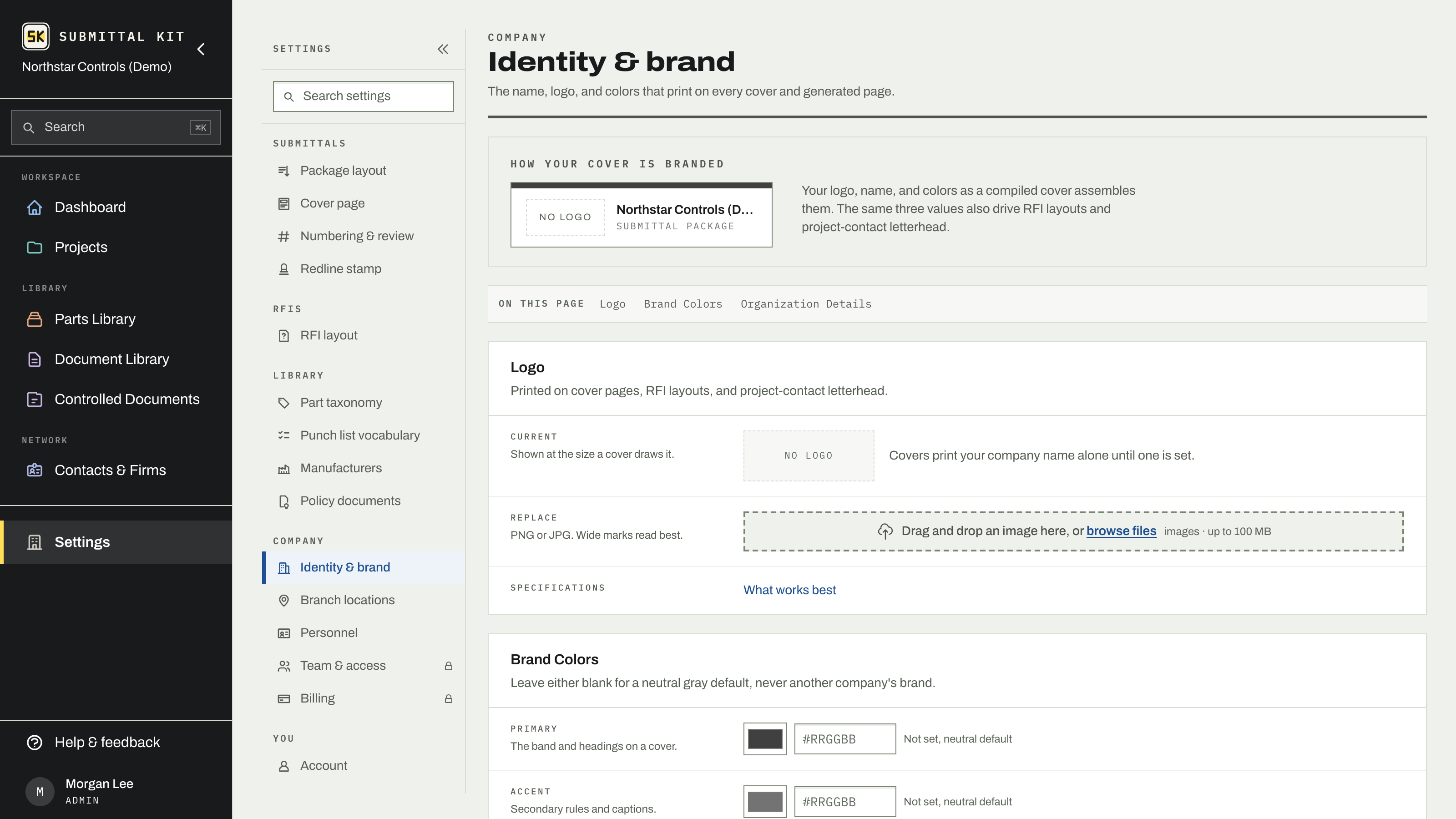
The result lands on cover pages and issued paper without anyone touching a template.
Branch locations
If your company has more than one office, add each one under Settings, Branch locations, with its address and office phone. A branch is an office a project can speak for: pick the branch in project settings and that office's address and letterhead land on compiled covers automatically, instead of being edited by hand per package. Each person also picks their own default office on their Account page, so new projects start with the right one.
Settings save as you work
Most settings fields save the moment you leave them and confirm with a small Saved receipt, so there's no Save button to forget and no ten minutes of edits lost to a missed click. A few grouped sections, like brand colors, keep a single save control; its bar reads "No changes" until you've edited something, so you always know whether anything is unsaved.
Search works inside Settings too. Press Cmd+K (or Ctrl+K) and type what you're trying to change, like "brand colors" or "letterhead", and it takes you to the exact section.
Updated Sep 6, 2026
Can't find it? [email protected]