All guides
Getting started
What is Submittal Kit Create Your Workspace Your First Project Search Everything The Dashboard Help and What's New Abbreviations We UnderstandProjects & Schedule
Project Settings Schedule and MilestonesEquipment Register
Equipment Register Basics Import a BOM Equipment DocumentsParts & Library
The Parts Library Part Documents Find Datasheets The Document Library Search Inside DocumentsSubmittals
Create a Submittal Configure Sections Choose Equipment Scope Compile a Submittal O&M Manuals Submittal Numbering Cover Pages Package LayoutsRevisions & Review
Issue a Revision Submittal Log Returned Reviews Comment Response Log Record an External Submittal Share with an outside reviewerRFIs
RFI Basics RFI Log RFI LayoutsField & QA
Punch Lists As-Built RedlinesSpecifications & Scope
Upload Specifications Spec CheckProcurement & Change Orders
Quotes and Purchase Orders Coverage and Lead Times Change Orders Budget and SOVDirectory & Team
Firms & Contacts Team & Access Personnel & CertificationsSettings & Billing
Company Identity Library Vocabulary Billing and PlansIntegrations
Connect an AgentHelp Revisions & Review
View as MarkdownIssue a Revision
Mark a compiled package as submitted and it becomes a permanent, numbered revision.
Six weeks after a package goes out, someone asks what was actually in it. If the answer lives in a folder of files that kept changing, you don't have one. Issuing a revision fixes that: the exact bytes you sent are kept forever.
What issuing does
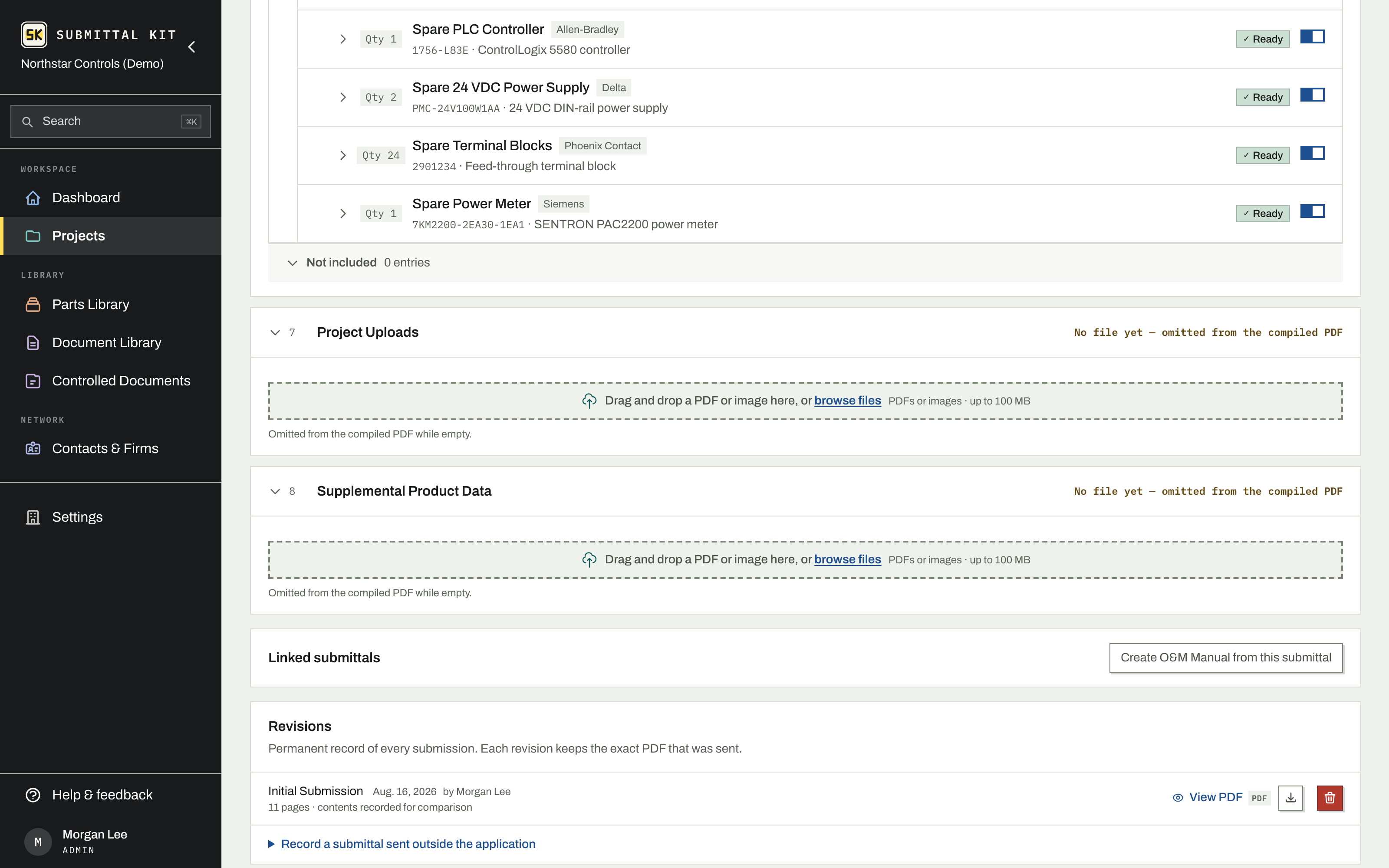
On a submittal's page, Mark as Submitted promotes the compile into a permanent revision. The issued files can never change afterward, no matter how much you edit the submittal later. Every revision lands on the Submittal Log with its submitted date and review status.
Numbering runs Initial, Rev 1, Rev 2 (or Rev A, Rev B, depending on your revision naming setting), and each new submission continues the sequence automatically. See Submittal numbering.
Issue in one step
- Open the submittal. When it reads Good to go, you can compile first to review the package, or skip straight to issuing.
- Click Mark as Submitted. With a reviewed compile ready, that compile is recorded as the revision. With no fresh compile, one click compiles, verifies, and issues in a single step.
- Confirm. The revision appears at the top of the Revisions list and on the log.
If the package is short of documents its recipe requires, the confirmation warns you first rather than refusing, so a deliberate partial submission is still one click.
Preview what you issued
Every revision in the Revisions list opens in the same preview window the rest of the app uses, with a download beside it. Packages that include signed originals offer a complete-package download: the primary PDF, every untouched signed original, and a README. No more saving a file just to check what went out in Rev 2. The same row shows how the review went, and opens to the full review record.
To hand the issued revision to the reviewing engineer, share it with an outside reviewer; the share always serves the latest issued revision.
Withdraw a revision that never went out
Issued the wrong thing? Withdraw the latest revision. Its snapshot is deleted and the number is freed, so the next submission is issued under the same label. Use it only for a package that was never actually sent; a package the reviewer has seen belongs on the record.
The next round
Issuing freezes the revision, not the submittal. The working submittal stays fully editable, so when the review comes back revise and resubmit, you answer the comments in the Comment Response Log, fix the documents, and issue the next revision from the same place.
Compile and issue are separate on purpose: compile as many times as you like while you review; only Mark as Submitted creates a record.
Updated Sep 18, 2026
Can't find it? [email protected]