All guides
Getting started
What is Submittal Kit Create Your Workspace Your First Project Search Everything The Dashboard Help and What's New Abbreviations We UnderstandProjects & Schedule
Project Settings Schedule and MilestonesEquipment Register
Equipment Register Basics Import a BOM Equipment DocumentsParts & Library
The Parts Library Part Documents Find Datasheets The Document Library Search Inside DocumentsSubmittals
Create a Submittal Configure Sections Choose Equipment Scope Compile a Submittal O&M Manuals Submittal Numbering Cover Pages Package LayoutsRevisions & Review
Issue a Revision Submittal Log Returned Reviews Comment Response Log Record an External Submittal Share with an outside reviewerRFIs
RFI Basics RFI Log RFI LayoutsField & QA
Punch Lists As-Built RedlinesSpecifications & Scope
Upload Specifications Spec CheckProcurement & Change Orders
Quotes and Purchase Orders Coverage and Lead Times Change Orders Budget and SOVDirectory & Team
Firms & Contacts Team & Access Personnel & CertificationsSettings & Billing
Company Identity Library Vocabulary Billing and PlansIntegrations
Connect an AgentHelp Parts & Library
View as MarkdownFind Datasheets
Start a document hunt for a part and approve what it finds before anything enters your library.
Twenty browser tabs, two vendor login walls, and an hour later you have one datasheet, maybe the right revision. A document hunt does the searching; you keep the judgment.
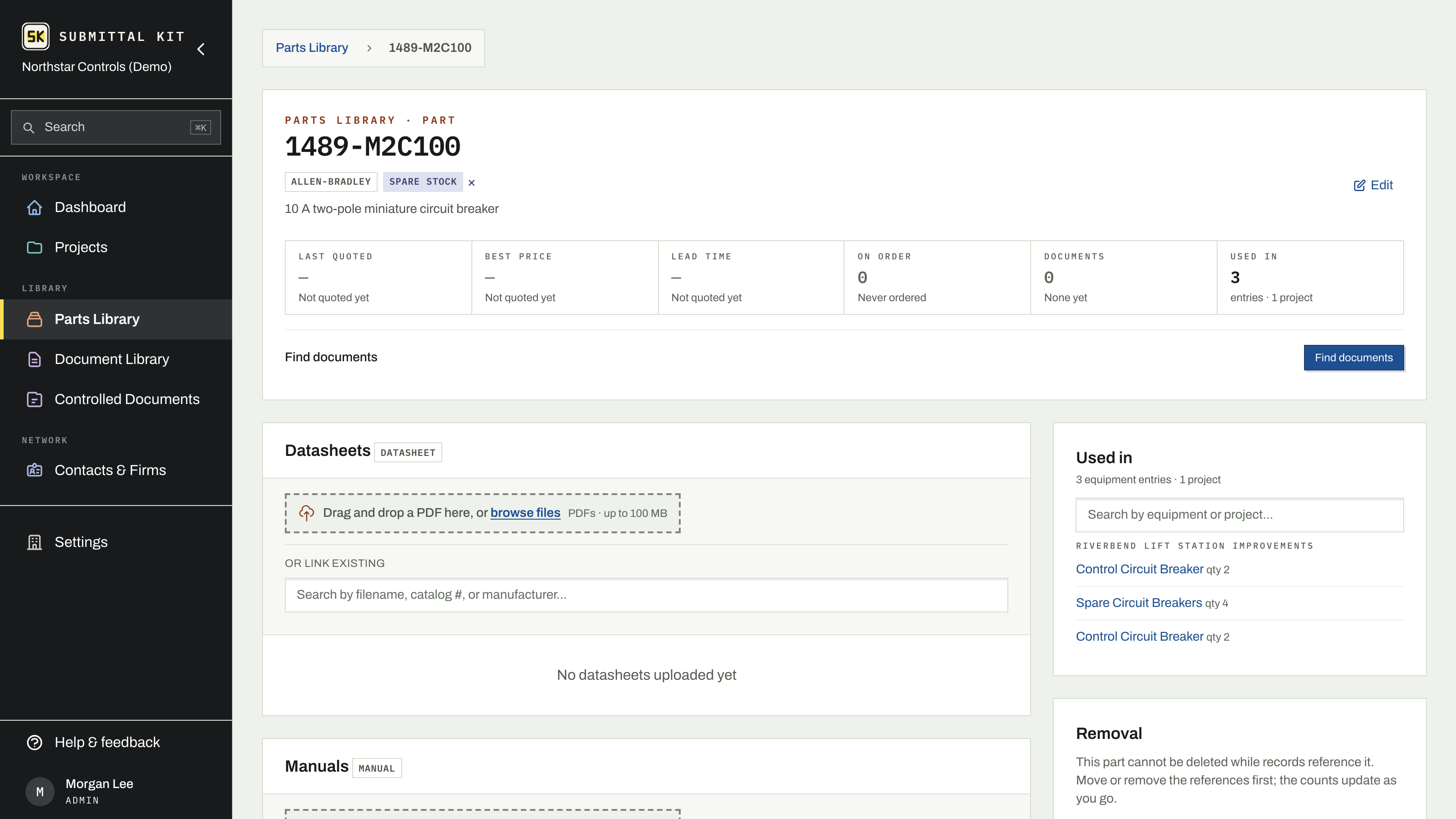
Start a hunt
On a part's page, press Find documents. The search checks your own shared library first, because the sheet often already exists from a past job, then looks further afield on the web. A progress row shows what it's doing, and Stop ends it at any point; you can search again or upload manually whenever you like. When only a family-level catalog turns up, a follow-up link offers to search the web for a part-specific sheet.
Review what it found
Candidates land in a review queue on the same page. Nothing enters your library without a person accepting it.
- Open a candidate's file name to preview the actual document.
- Each row is labeled: Datasheet or Manual, Exact match or Family catalog, and a check when the catalog number was verified inside the file. Expand a row for the reasoning and the source.
- Press Add to accept it (adjust the document type if it guessed wrong), or Link when the match is a document already in your library.
- Dismiss anything that misses. A toast offers Undo for a few seconds if you dismiss the wrong one.
Accepted documents attach to the part and join the Document Library, where the usual catalog-number highlighting picks them up. See Part documents.
Once every candidate has a verdict, the panel collapses to a one-line receipt: how many were added, how many dismissed, and when. Search again reruns the hunt later, after a vendor publishes the revision you were waiting for.
Work through a backlog
The Missing datasheet and Missing manual filters in the Parts Library give you the exact list of parts worth hunting. Working through a long one? A connected agent can queue hunts for up to 25 parts in one call, and every candidate still waits in the same review queue for a person's accept. See Connect an agent.
A hunt that comes back empty says so plainly, and the part page keeps its manual upload and link-existing options right below, so a dead end costs you seconds, not the afternoon.
Updated Aug 15, 2026
Can't find it? [email protected]