All guides
Getting started
What is Submittal Kit Create Your Workspace Your First Project Search Everything The Dashboard Help and What's New Abbreviations We UnderstandProjects & Schedule
Project Settings Schedule and MilestonesEquipment Register
Equipment Register Basics Import a BOM Equipment DocumentsParts & Library
The Parts Library Part Documents Find Datasheets The Document Library Search Inside DocumentsSubmittals
Create a Submittal Configure Sections Choose Equipment Scope Compile a Submittal O&M Manuals Submittal Numbering Cover Pages Package LayoutsRevisions & Review
Issue a Revision Submittal Log Returned Reviews Comment Response Log Record an External Submittal Share with an outside reviewerRFIs
RFI Basics RFI Log RFI LayoutsField & QA
Punch Lists As-Built RedlinesSpecifications & Scope
Upload Specifications Spec CheckProcurement & Change Orders
Quotes and Purchase Orders Coverage and Lead Times Change Orders Budget and SOVDirectory & Team
Firms & Contacts Team & Access Personnel & CertificationsSettings & Billing
Company Identity Library Vocabulary Billing and PlansIntegrations
Connect an AgentHelp Getting started
View as MarkdownSearch Everything
One keystroke finds any record, page, or line of text in your workspace.
You know the flow switch's tag and nothing else, not the job, not the submittal it went out in. Hunting that down used to mean opening projects one by one. Here it's one keystroke.
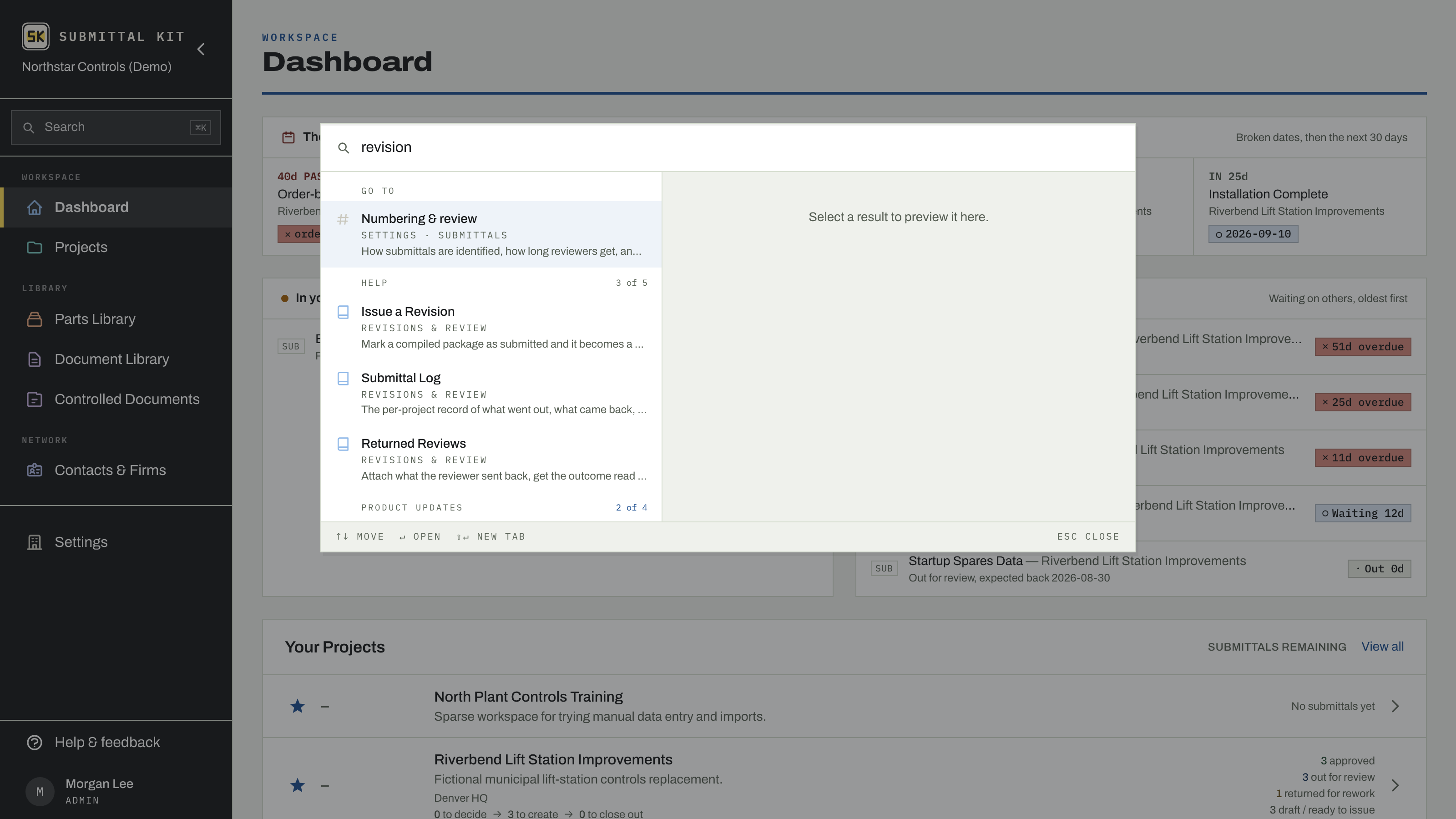
Open it anywhere
Press Cmd+K (or Ctrl+K on Windows) on any page. Before you type, the palette offers destinations: every main page, every settings section by its own name ("brand colors" works even though no page is titled that), and, when you're inside a project, saved Views like "Submittal Log: ball in our court" and "RFIs: waiting on them".
As you type, results group by what they are. Inside a project you get its submittals, equipment, RFIs, punch items, change orders, and spec sections; everywhere you get projects, parts, documents, contacts, and firms.
Type the identifier you're looking at
Search understands the numbers your industry runs on. Type an equipment tag, a catalog number, a spec section (26 05 48 or 260548 both work), a submittal number, an RFI number, a change order number ("CO 12"), or a job number, and it resolves straight to the record that carries it, along with related items. When a number could be two things, both are offered and you pick; it never guesses on your behalf.
Manufacturer names resolve through their alternate spellings too. Search one name and a part filed under the other still appears, with a small note explaining why it matched.
Search inside your documents
Search reads content, not just titles. It looks inside your library PDFs page by page and opens the matched document at the matched page, so a phrase you half-remember from a 400-page datasheet is a few keystrokes from the paragraph itself. It also reads the text inside RFIs, punch responses, change orders, equipment notes, and recorded spec requirements, showing the matched line with a preview beside the results. See Search inside documents.
It remembers where you were
Close the palette and reopen it and your search is still there. Open it empty and it remembers where you've been; press Enter to jump back to your previous spot.
The same search works on this help site. Press Cmd+K here and it's scoped to the guides, so "how do I issue a revision" finds its answer the same way "80-PLC-05" does in the app.
Updated Aug 15, 2026
Can't find it? [email protected]