All guides
Getting started
What is Submittal Kit Create Your Workspace Your First Project Search Everything The Dashboard Help and What's New Abbreviations We UnderstandProjects & Schedule
Project Settings Schedule and MilestonesEquipment Register
Equipment Register Basics Import a BOM Equipment DocumentsParts & Library
The Parts Library Part Documents Find Datasheets The Document Library Search Inside DocumentsSubmittals
Create a Submittal Configure Sections Choose Equipment Scope Compile a Submittal O&M Manuals Submittal Numbering Cover Pages Package LayoutsRevisions & Review
Issue a Revision Submittal Log Returned Reviews Comment Response Log Record an External Submittal Share with an outside reviewerRFIs
RFI Basics RFI Log RFI LayoutsField & QA
Punch Lists As-Built RedlinesSpecifications & Scope
Upload Specifications Spec CheckProcurement & Change Orders
Quotes and Purchase Orders Coverage and Lead Times Change Orders Budget and SOVDirectory & Team
Firms & Contacts Team & Access Personnel & CertificationsSettings & Billing
Company Identity Library Vocabulary Billing and PlansIntegrations
Connect an AgentHelp Equipment Register
View as MarkdownEquipment Register Basics
Build one tree of groups and items per project and keep every submittal in step with it.
The same flow transmitter shows up in five spreadsheets and gets corrected in four of them. The Equipment Register ends that: each project keeps exactly one list, every submittal reads from it, and a part corrected once is corrected everywhere it appears.
How the tree works
The register is a tree. Groups are containers, a lift station, a control panel, a process area. Items are the parts inside them, each pointing at one part in your shared Parts Library. Because items point at library parts rather than carrying copies, fixing a catalog number on the part fixes it in every project and package that uses it.
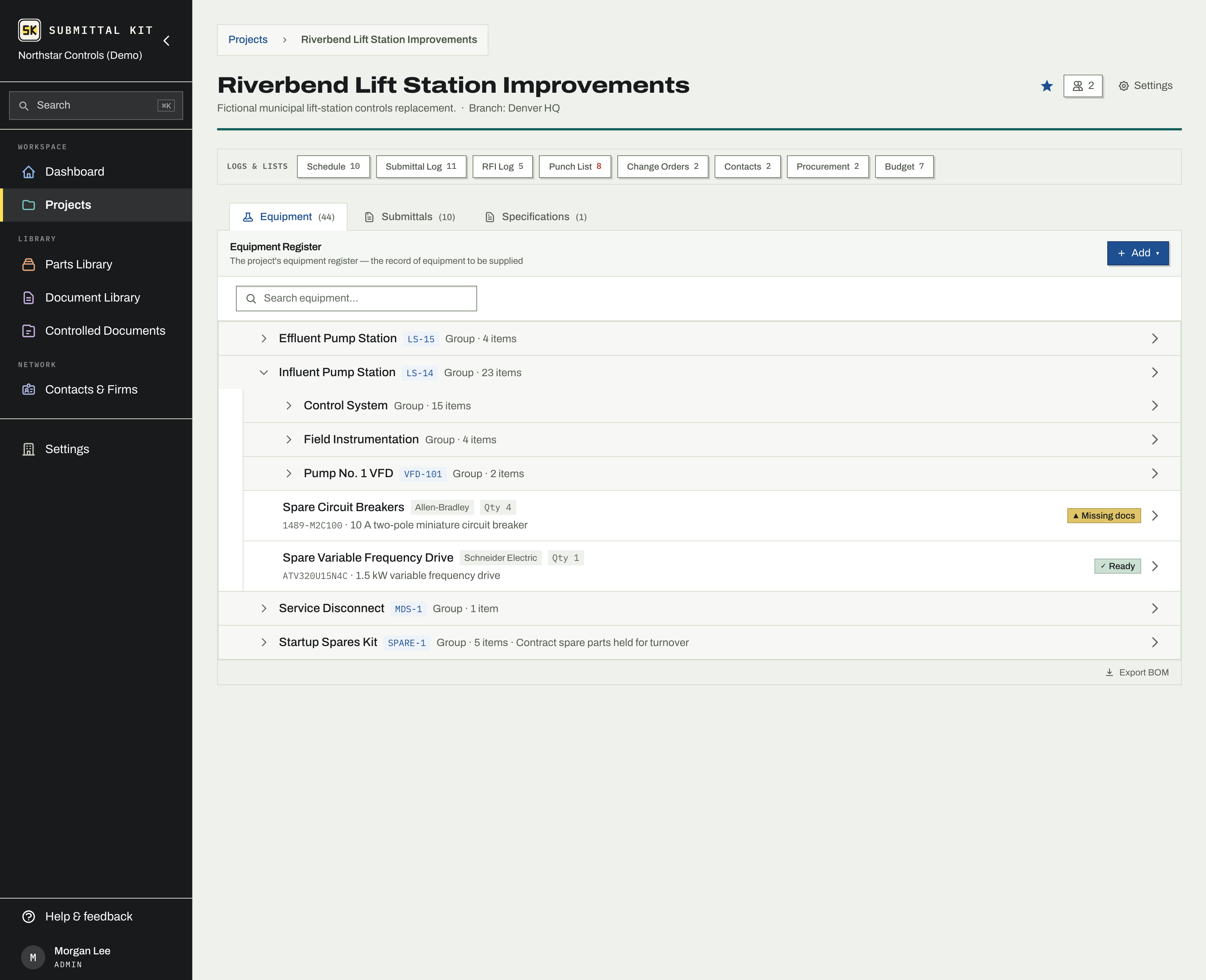
Adding equipment
Open your project's Equipment tab and use the Add menu:
- Group creates a container. Give it a name, an optional equipment tag, and a location in the tree.
- Item searches the Parts Library. Picked parts queue below the search box; set the tag and quantity, then add each one.
- Import BOM reads a whole spreadsheet in one pass. See Import a BOM.
- New Part creates a part that isn't in your library yet, then adds it here in the same step.
Entry details
Open any entry to edit its name, equipment tag, quantity, configuration, description, and need-by date. On a group, Apply to subtree sets one need-by date on the group and everything inside it, replacing whatever each entry had. The Location select moves an entry to another parent; moving keeps its identity and history. Items can also be relinked to a different library part without losing anything else.
Bulk changes
Check any row and a bar appears with Select all, Move to (an existing group or a new one you name on the spot), and Delete. Delete always shows a preview first: how many entries go, which uploaded documents they carry (check any to keep), which submittals the equipment feeds, and which entries will be skipped because punch items are anchored to them.
When a submittal is archived, its equipment leaves the active register and sits under Equipment of archived submittals at the bottom of the tab. Restoring the submittal from its detail page brings the entries back.
Finding an entry
The register's search box matches names, equipment tags, catalog numbers, manufacturers, configurations, and descriptions, so typing a tag like LIT-101 lands on the entry that carries it. Cmd+K works too, from anywhere in the app. See Search everything.
Quantity covers identical units that share one tag treatment and configuration. Units that need different treatment belong as separate items.
Updated Aug 15, 2026
Can't find it? [email protected]