All guides
Getting started
What is Submittal Kit Create Your Workspace Your First Project Search Everything The Dashboard Help and What's New Abbreviations We UnderstandProjects & Schedule
Project Settings Schedule and MilestonesEquipment Register
Equipment Register Basics Import a BOM Equipment DocumentsParts & Library
The Parts Library Part Documents Find Datasheets The Document Library Search Inside DocumentsSubmittals
Create a Submittal Configure Sections Choose Equipment Scope Compile a Submittal O&M Manuals Submittal Numbering Cover Pages Package LayoutsRevisions & Review
Issue a Revision Submittal Log Returned Reviews Comment Response Log Record an External Submittal Share with an outside reviewerRFIs
RFI Basics RFI Log RFI LayoutsField & QA
Punch Lists As-Built RedlinesSpecifications & Scope
Upload Specifications Spec CheckProcurement & Change Orders
Quotes and Purchase Orders Coverage and Lead Times Change Orders Budget and SOVDirectory & Team
Firms & Contacts Team & Access Personnel & CertificationsSettings & Billing
Company Identity Library Vocabulary Billing and PlansIntegrations
Connect an AgentHelp Procurement & Change Orders
View as MarkdownChange Orders
A numbered CO log with statuses, dollar amounts, imports from your old spreadsheet or a PDF, and ties to the budget and SOV.
Change orders are where money leaks: a PCO log in a spreadsheet with three versions, none of them matching what finance thinks was approved. The Change Order Log keeps one numbered record of every change, next to the work that caused it.
The log
Every project keeps a Change Order Log beside its RFI Log and Punch List: numbered records with status (draft, proposed, approved, rejected, void), dollar amount, and the RFI the change grew out of. A stats strip totals what's proposed and what's approved, and the whole log exports to XLSX.
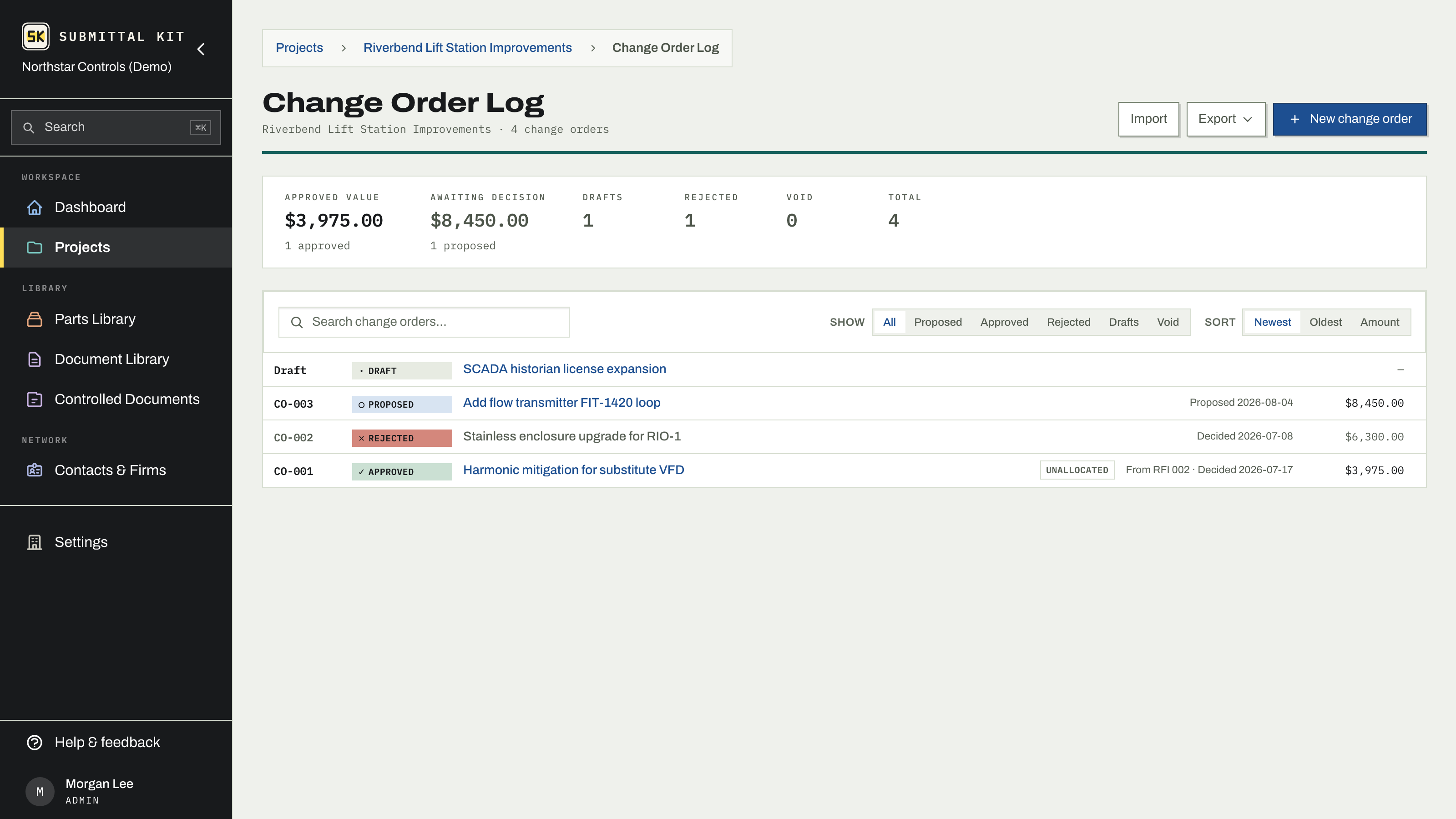
Work a record in the drawer
Click a row and it opens in place. Fields save as you leave them, and each save confirms itself, so there's no Save button to forget. Mark a record approved, rejected, or void without the page moving. Drop quotes or markups straight onto the record and they attach, several at once. A new record starts as an unnumbered draft; the number is assigned when you propose it. If something lands wrong, correct the dates or the number on the record itself.
Import your existing log
Drop your current CO or PCO spreadsheet on the page.
- The import reads layouts that aren't laid out like ours: headers split over two lines, and the Pending / Approved / Rejected columns many PCO logs use instead of a status column.
- Anything already in the log is spotted by number, or by matching title and amount.
- You decide row by row: skip it, import it anyway as the next number, or update the existing record from the sheet.
Nothing commits until you confirm, so a messy sheet costs you a review, not a cleanup.
Read a change order from a document
A change proposal that arrives as a PDF does not need retyping. On the New Change Order page, drop it on Read from a document. The form fills in with what the document states: its number, a title, the amount, and the requested and issued dates. Correct anything it got wrong or left out, then choose Log change order; the PDF attaches as the record's original document. Start over discards the suggestion and the upload.
Log external COs
A change that already went to the customer on paper still belongs in the record. Log it as an external CO from the same create control, with its number and dates as issued.
Money flows downstream
Allocate an approved CO to the budget lines it spends against, and add it to the SOV so you can bill it. The Budget & SOV page flags approved value that hasn't been allocated or scheduled yet, so approved dollars never quietly go missing between the log and the pay app.
Updated Sep 6, 2026
Can't find it? [email protected]