All guides
Getting started
What is Submittal Kit Create Your Workspace Your First Project Search Everything The Dashboard Help and What's New Abbreviations We UnderstandProjects & Schedule
Project Settings Schedule and MilestonesEquipment Register
Equipment Register Basics Import a BOM Equipment DocumentsParts & Library
The Parts Library Part Documents Find Datasheets The Document Library Search Inside DocumentsSubmittals
Create a Submittal Configure Sections Choose Equipment Scope Compile a Submittal O&M Manuals Submittal Numbering Cover Pages Package LayoutsRevisions & Review
Issue a Revision Submittal Log Returned Reviews Comment Response Log Record an External Submittal Share with an outside reviewerRFIs
RFI Basics RFI Log RFI LayoutsField & QA
Punch Lists As-Built RedlinesSpecifications & Scope
Upload Specifications Spec CheckProcurement & Change Orders
Quotes and Purchase Orders Coverage and Lead Times Change Orders Budget and SOVDirectory & Team
Firms & Contacts Team & Access Personnel & CertificationsSettings & Billing
Company Identity Library Vocabulary Billing and PlansIntegrations
Connect an AgentHelp Submittals
View as MarkdownConfigure Sections
Shape the ordered sections a submittal compiles into, and link the spec sections it answers.
A submittal package lives or dies by its structure, and rebuilding that structure by shuffling PDFs in a merge tool is where afternoons go. Here a submittal is ordered sections, and the page shows them in compile order.
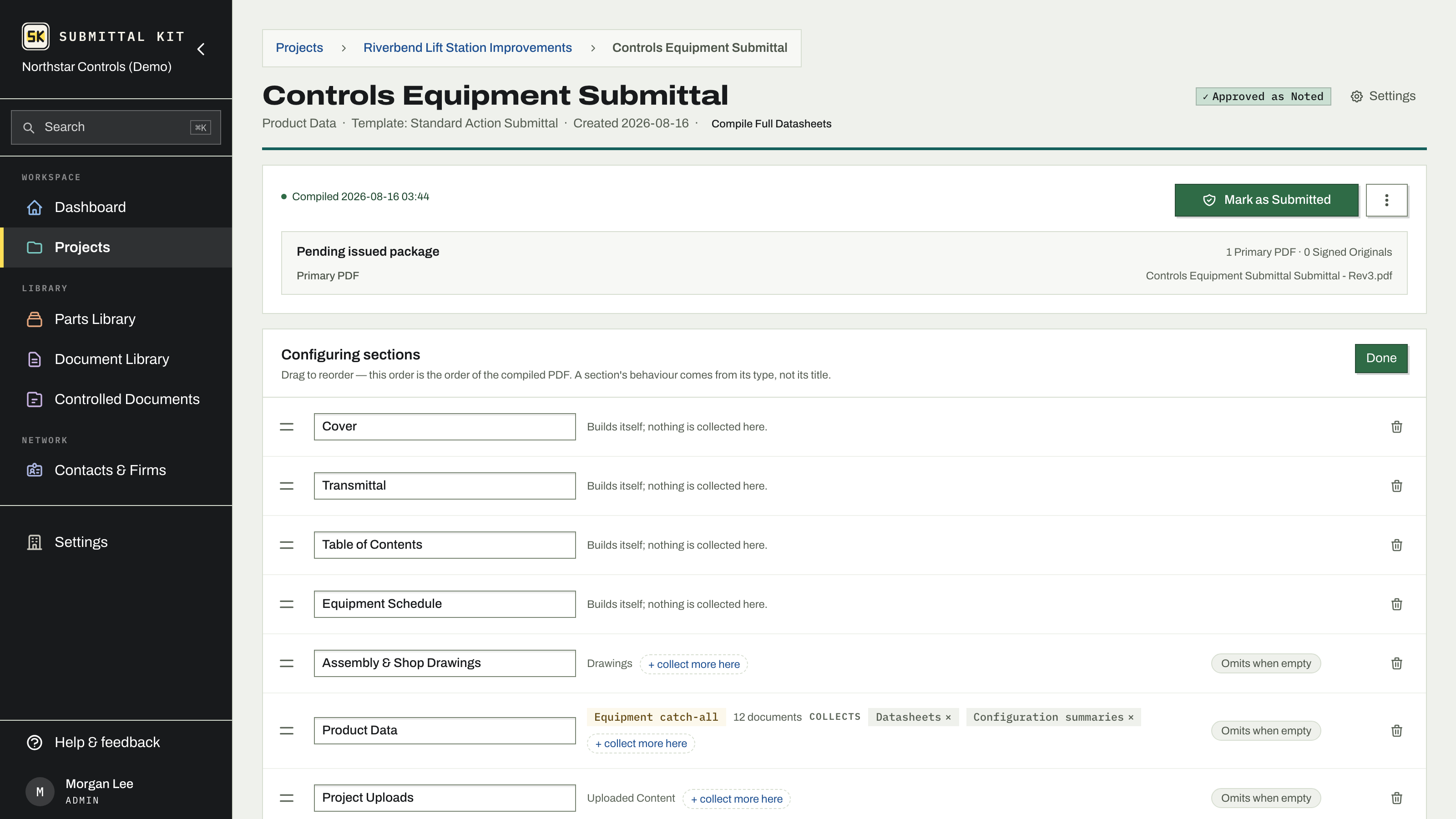
Sections and their roles
Every section has a role that defines its behavior; its title is yours to edit. Roles include Cover, Transmittal, Table of Contents, Comment Response Log, Overview & Safety, Equipment Schedule, Station/Panel BOM, Drawings, Product Data, Equipment Chapters, Testing & Commissioning, Studies, Warranties, Uploaded Content, Supplemental Documents, Specification, As-Built Redlines, Emergency Contacts, Competent Persons, and Company Policy Documents.
Some sections build themselves: Cover, Transmittal, Table of Contents, Comment Response Log, Equipment Schedule, Station/Panel BOM, Emergency Contacts, and Competent Persons are generated at compile time and take no routed documents. Emergency Contacts and Competent Persons let you check which of your personnel appear.
The cover note
The Transmittal section holds a Cover note field. It is plain text and saves as you type. It prints in the transmittal's NOTES block, and while it is blank the block keeps its fillable lines instead. A cover template can place it too, anywhere the {cover_note} token sits; a blank note renders nothing there, so a line holding only the token disappears.
Draft note beside the field fills in a starting paragraph from what the submittal already records: what the package contains and, on a resubmittal, which files changed since the last issued revision and which review comments the package answers. The draft lands in the field for you to edit. When drafting is not offered, the field works the same by hand.
Editing the note expires the current compile, and the note prints from the next compile onward. Issued revisions keep the note they went out with.
Add, reorder, rename, delete
- Click Configure sections on the submittal page.
- Add a section opens a palette of section types, grouped into Front matter, Equipment & product, Closeout & field, and General. A checkmark marks types already added. A Custom Upload gives you a named place for PDFs you'll upload yourself.
- Drag the grip to reorder (or focus it and use the arrow keys). This order is the order of the compiled PDF.
- The title is the field: type a new name and it saves on its own.
- Delete removes a section; deleting a catch-all warns you, since anything no other section claims would become a preparation warning instead of being included.
Each non-generated section carries an empty policy: Omits when empty leaves it out of the compiled PDF, Placeholder when empty prints a placeholder page instead.
An As-Built Redlines section can attach a finished redline from the project, which is included on compile alongside anything you upload to the section.
The Comment Response Log
On a resubmittal, the Comment Response Log section tracks the reviewer's comments as individual items inside the submittal: add them by hand or import them, respond to each, and the log compiles as its own page. See Comment Response Log.
Spec links
Link the specification sections this submittal answers: enter a number, browse the sections you've uploaded, or accept a suggestion drawn from your spec book and the equipment in the package. Mark one as primary and it prints on the cover and transmittal.
Where documents land inside these sections is driven by equipment scope and routing. The sections a new submittal starts with come from its package layout.
Updated Sep 6, 2026
Can't find it? [email protected]