All guides
Getting started
What is Submittal Kit Create Your Workspace Your First Project Search Everything The Dashboard Help and What's New Abbreviations We UnderstandProjects & Schedule
Project Settings Schedule and MilestonesEquipment Register
Equipment Register Basics Import a BOM Equipment DocumentsParts & Library
The Parts Library Part Documents Find Datasheets The Document Library Search Inside DocumentsSubmittals
Create a Submittal Configure Sections Choose Equipment Scope Compile a Submittal O&M Manuals Submittal Numbering Cover Pages Package LayoutsRevisions & Review
Issue a Revision Submittal Log Returned Reviews Comment Response Log Record an External Submittal Share with an outside reviewerRFIs
RFI Basics RFI Log RFI LayoutsField & QA
Punch Lists As-Built RedlinesSpecifications & Scope
Upload Specifications Spec CheckProcurement & Change Orders
Quotes and Purchase Orders Coverage and Lead Times Change Orders Budget and SOVDirectory & Team
Firms & Contacts Team & Access Personnel & CertificationsSettings & Billing
Company Identity Library Vocabulary Billing and PlansIntegrations
Connect an AgentHelp Procurement & Change Orders
View as MarkdownQuotes and Purchase Orders
Turn vendor quote PDFs into priced line items, purchase orders, and a price history you can trust.
A vendor quote lands in your inbox, and the numbers in it die there: retyped into a spreadsheet once, never connected to the parts they price, gone by the next job. Submittal Kit reads the quote and keeps every price on the part it belongs to.
Drop in a quote
Open your project's Procurement tab and switch to the Quotes view.
- Drop the vendor's quote PDF on the page. Line items are read from the document, matched against your parts, and priced.
- Review the candidate. Confirm the vendor (or create a new one, and remember that spelling as an alias), the quote date, and a reference.
- Fix up the lines: uncheck any you don't want, remove a misread line, search your part library to correct a match, create a part that doesn't exist yet, or add a line by hand.
- Accept the selected lines, or dismiss the candidate and its staged file is discarded.
If a file can't be read automatically, you can still add each priced part by hand and keep the PDF attached as the source.
Prices follow the part
Every accepted line becomes a price record on that part. Together they form your price book, and it reaches across projects: pricing a part on a new job shows what vendors quoted it on every other job, for reference only, never applied automatically. That history is the difference between negotiating from memory and negotiating from your own records.
Purchase orders
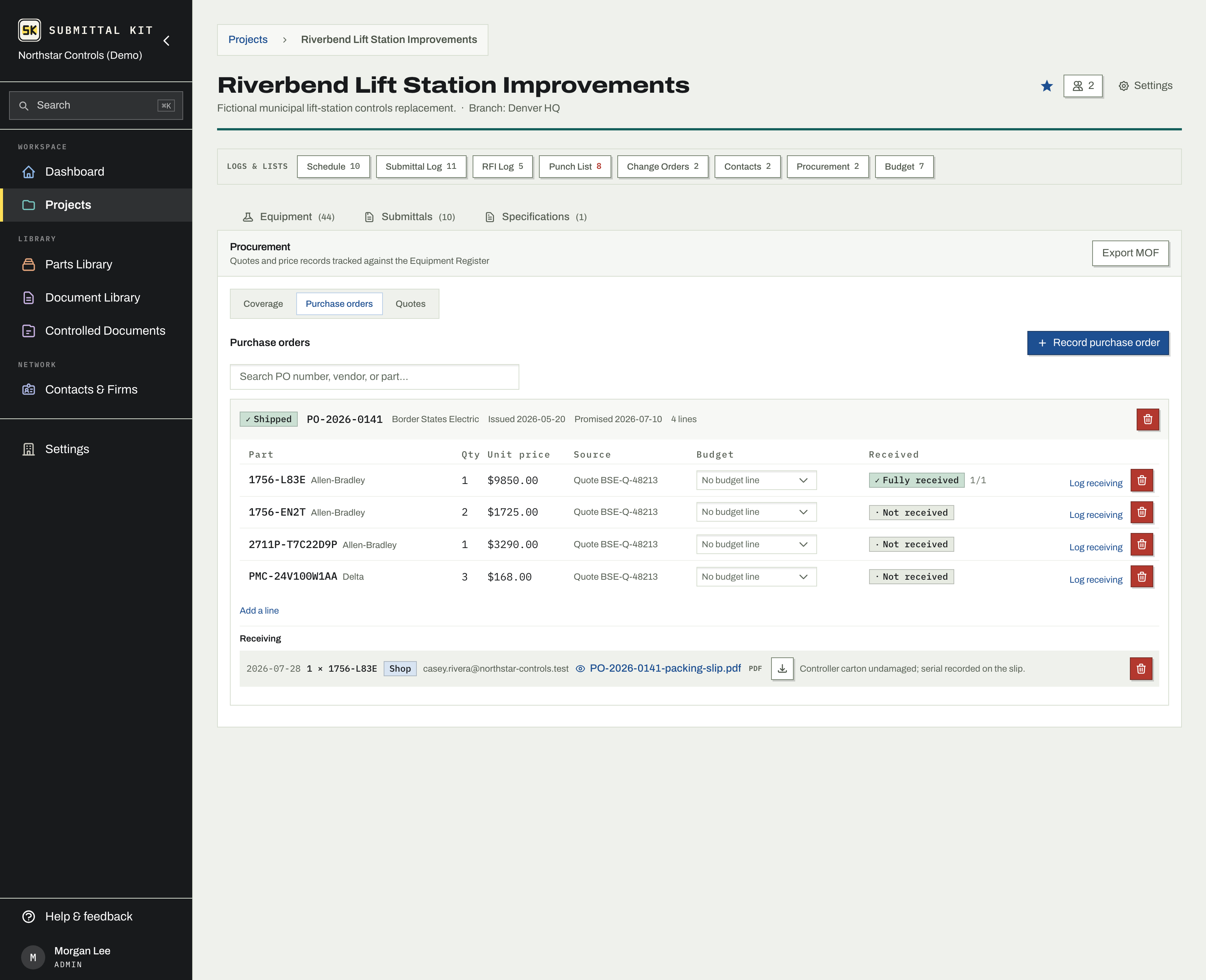
When you're ready to buy, build a PO from the quotes you accepted.
- Create a purchase order and add lines by searching your parts. Where a part has more than one quoted price, pick the price option you're actually buying at.
- Tie each line to a budget line so the committed cost lands in your Budget Register.
- Acknowledge the PO when the vendor confirms it, then record the promised ship date.
- Log receiving events as material arrives, at the shop or at the site, and attach the packing slip to each one.
Ordered, acknowledged, and received status roll up into the Coverage view, so the question "did we ever order that?" has an answer you can point at.
Receiving dates do double duty: they build a historical record of each part's actual lead time, which sharpens the order-by warnings on every future job.
Updated Aug 15, 2026
Can't find it? [email protected]