All guides
Getting started
What is Submittal Kit Create Your Workspace Your First Project Search Everything The Dashboard Help and What's New Abbreviations We UnderstandProjects & Schedule
Project Settings Schedule and MilestonesEquipment Register
Equipment Register Basics Import a BOM Equipment DocumentsParts & Library
The Parts Library Part Documents Find Datasheets The Document Library Search Inside DocumentsSubmittals
Create a Submittal Configure Sections Choose Equipment Scope Compile a Submittal O&M Manuals Submittal Numbering Cover Pages Package LayoutsRevisions & Review
Issue a Revision Submittal Log Returned Reviews Comment Response Log Record an External Submittal Share with an outside reviewerRFIs
RFI Basics RFI Log RFI LayoutsField & QA
Punch Lists As-Built RedlinesSpecifications & Scope
Upload Specifications Spec CheckProcurement & Change Orders
Quotes and Purchase Orders Coverage and Lead Times Change Orders Budget and SOVDirectory & Team
Firms & Contacts Team & Access Personnel & CertificationsSettings & Billing
Company Identity Library Vocabulary Billing and PlansIntegrations
Connect an AgentHelp Submittals
View as MarkdownCreate a Submittal
Start a new package from a template, pick its type, and manage its name and settings.
Starting a new package usually means copying last month's folder and hoping you deleted everything that doesn't apply. Here, a new submittal starts from a template with its sections and cover already in place.
Create one
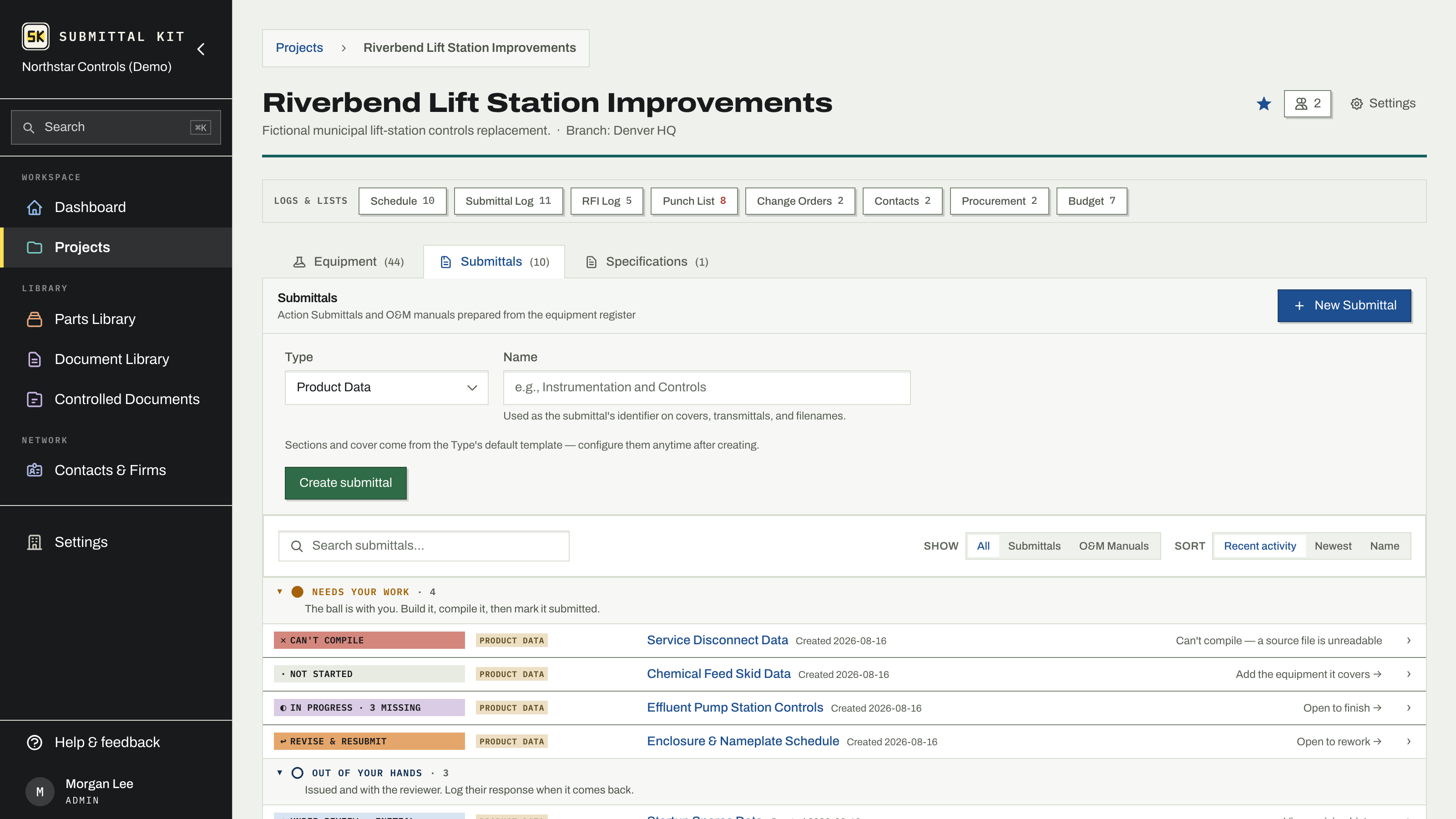
- Open your project and go to the Submittals tab.
- Click New Submittal.
- Pick a Type and give it a name. The name is the submittal's identifier on covers, transmittals, and filenames.
- Click Create submittal. Sections and cover come from the Type's default template, and you can configure them anytime after creating.
Types
The Type picker is grouped by what the package is for:
- Action Submittals, issued for review and returned: Product Data, Shop Drawing, Sample, Design Data, Test Report, Certificate, Manufacturer's Instructions, Other.
- O&M Manuals, for closeout and turnover: O&M Manual, Warranty, Record Documents. See O&M manuals.
- Redlines: a Redline submittal owns a single marked-up drawing set instead of sections and equipment. See Redlines.
Admins can add custom types under Settings > Package contents, choosing at creation whether each behaves as an action submittal or closeout. Two types of the same kind compile identically; the type adds your company's vocabulary and its short code to numbering. The same page holds the package layouts each type starts from.
The settings drawer
Open the settings drawer on a submittal to change:
- Name. Renaming takes effect on the next compile.
- Specification. Link the spec sections this submittal is issued against by number, browse your claimed sections, or pick from suggestions. The one marked PRINTS appears on the cover and the transmittal's SPECIFICATION # line.
- Type. Changing it re-keys how the submittal compiles; the next compile applies it.
- Template. The template was copied at creation, so this submittal owns its sections. Pick a template and click Preview merge to re-apply one: you see exactly what would be added before committing, and the merge is non-destructive. It only adds what's missing.
Rename, delete, restore
Deleting a submittal with no issued revisions removes its sections, placements, and uploads. Once revisions have been issued, the same button archives instead: the revision history and the exact submitted PDFs are kept forever. Archived submittals sit in a collapsed list at the bottom of the Submittals tab, one click from Restore.
Next: scope in the equipment it covers, then compile it.
Updated Sep 6, 2026
Can't find it? [email protected]