All guides
Getting started
What is Submittal Kit Create Your Workspace Your First Project Search Everything The Dashboard Help and What's New Abbreviations We UnderstandProjects & Schedule
Project Settings Schedule and MilestonesEquipment Register
Equipment Register Basics Import a BOM Equipment DocumentsParts & Library
The Parts Library Part Documents Find Datasheets The Document Library Search Inside DocumentsSubmittals
Create a Submittal Configure Sections Choose Equipment Scope Compile a Submittal O&M Manuals Submittal Numbering Cover Pages Package LayoutsRevisions & Review
Issue a Revision Submittal Log Returned Reviews Comment Response Log Record an External Submittal Share with an outside reviewerRFIs
RFI Basics RFI Log RFI LayoutsField & QA
Punch Lists As-Built RedlinesSpecifications & Scope
Upload Specifications Spec CheckProcurement & Change Orders
Quotes and Purchase Orders Coverage and Lead Times Change Orders Budget and SOVDirectory & Team
Firms & Contacts Team & Access Personnel & CertificationsSettings & Billing
Company Identity Library Vocabulary Billing and PlansIntegrations
Connect an AgentHelp Getting started
View as MarkdownThe Dashboard
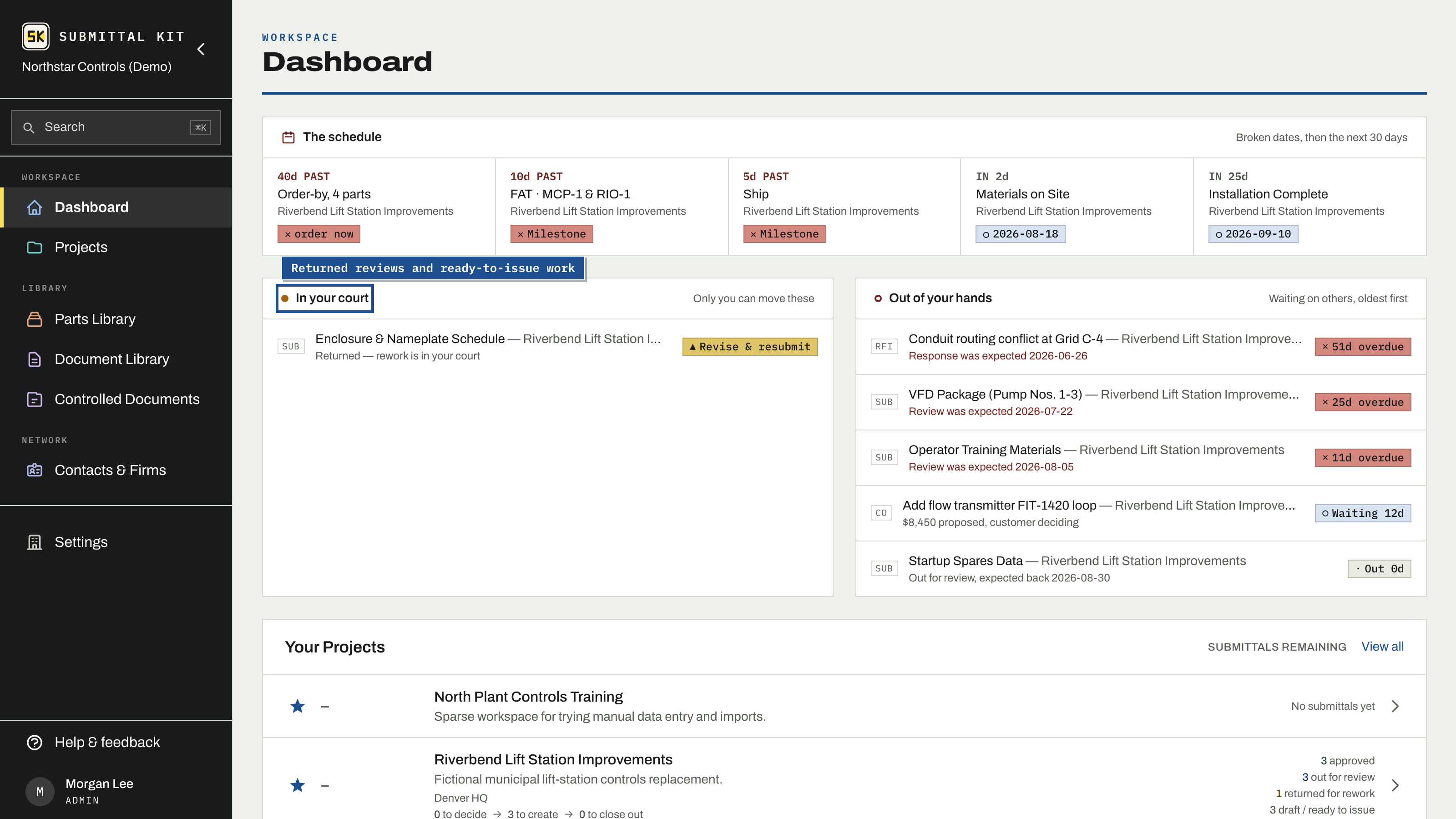
What's waiting on you and what's out with others, across every project you follow.
Running several jobs used to mean answering "what's late, everywhere?" by opening each project and checking five surfaces one at a time. The dashboard answers it on one page, for every project you follow.
Whose move is it
Open work splits into two lanes by one question: whose court is the ball in.
- In your court holds what only you can move: submittals returned for rework, packages ready to issue, stalled drafts, and change order drafts untouched for two weeks.
- Out of your hands holds what's sitting with someone else: submittals out for review, open RFIs, and change orders your customer is deciding. Rows are ordered oldest first.
When an expected date has passed, the row says so plainly ("6d overdue"). Being late changes the chip, not the lane; a submittal out for review stays out of your hands no matter how overdue the reviewer is. Every row carries a register tag (SUB, RFI, CO) naming the log it came from, and links straight to that record.
The schedule rail
Above the lanes, a rail reads left to right as a timeline of every dated item across your followed projects: broken dates first, then everything due in the next 30 days. A milestone past its date shows "4d PAST"; one whose schedule chain already projects a late landing shows "SLIP 14d" before the date ever arrives; upcoming ones show "IN 11d". Each entry links to its project.
Procurement rides the same rail. Parts whose order-by date (need-by minus lead time) falls inside the next two weeks show as one entry per project, a vendor promise that misses its need-by shows "12d LATE", and a part past its need-by with nothing on site shows "5d PAST, expedite". These use exactly the same math as the project's Coverage view, so the two never disagree.
An empty rail is the nudge: add milestones and need-by dates to your projects and it fills in on its own.
Only your projects
The dashboard shows only projects you follow. Until you star any, it shows a picker instead of presenting your colleagues' work as yours. See Your first project for following.
Following also brings late items to your inbox. The morning after a review or RFI response passes its expected date, one email lists everything overdue across the projects you follow, then repeats weekly until each item comes back. Turn it off under Settings > Account > Working preferences, or unfollow the project.
Updated Aug 15, 2026
Can't find it? [email protected]