All guides
Getting started
What is Submittal Kit Create Your Workspace Your First Project Search Everything The Dashboard Help and What's New Abbreviations We UnderstandProjects & Schedule
Project Settings Schedule and MilestonesEquipment Register
Equipment Register Basics Import a BOM Equipment DocumentsParts & Library
The Parts Library Part Documents Find Datasheets The Document Library Search Inside DocumentsSubmittals
Create a Submittal Configure Sections Choose Equipment Scope Compile a Submittal O&M Manuals Submittal Numbering Cover Pages Package LayoutsRevisions & Review
Issue a Revision Submittal Log Returned Reviews Comment Response Log Record an External Submittal Share with an outside reviewerRFIs
RFI Basics RFI Log RFI LayoutsField & QA
Punch Lists As-Built RedlinesSpecifications & Scope
Upload Specifications Spec CheckProcurement & Change Orders
Quotes and Purchase Orders Coverage and Lead Times Change Orders Budget and SOVDirectory & Team
Firms & Contacts Team & Access Personnel & CertificationsSettings & Billing
Company Identity Library Vocabulary Billing and PlansIntegrations
Connect an AgentHelp Parts & Library
View as MarkdownSearch Inside Documents
Search the text of every library PDF page by page, or ask a question and get a cited answer.
Somewhere in 300 datasheets is the one that states the 4-20 mA output impedance, and opening them one by one is not a plan. Every PDF in your library is searchable by its contents, page by page.
Search page by page
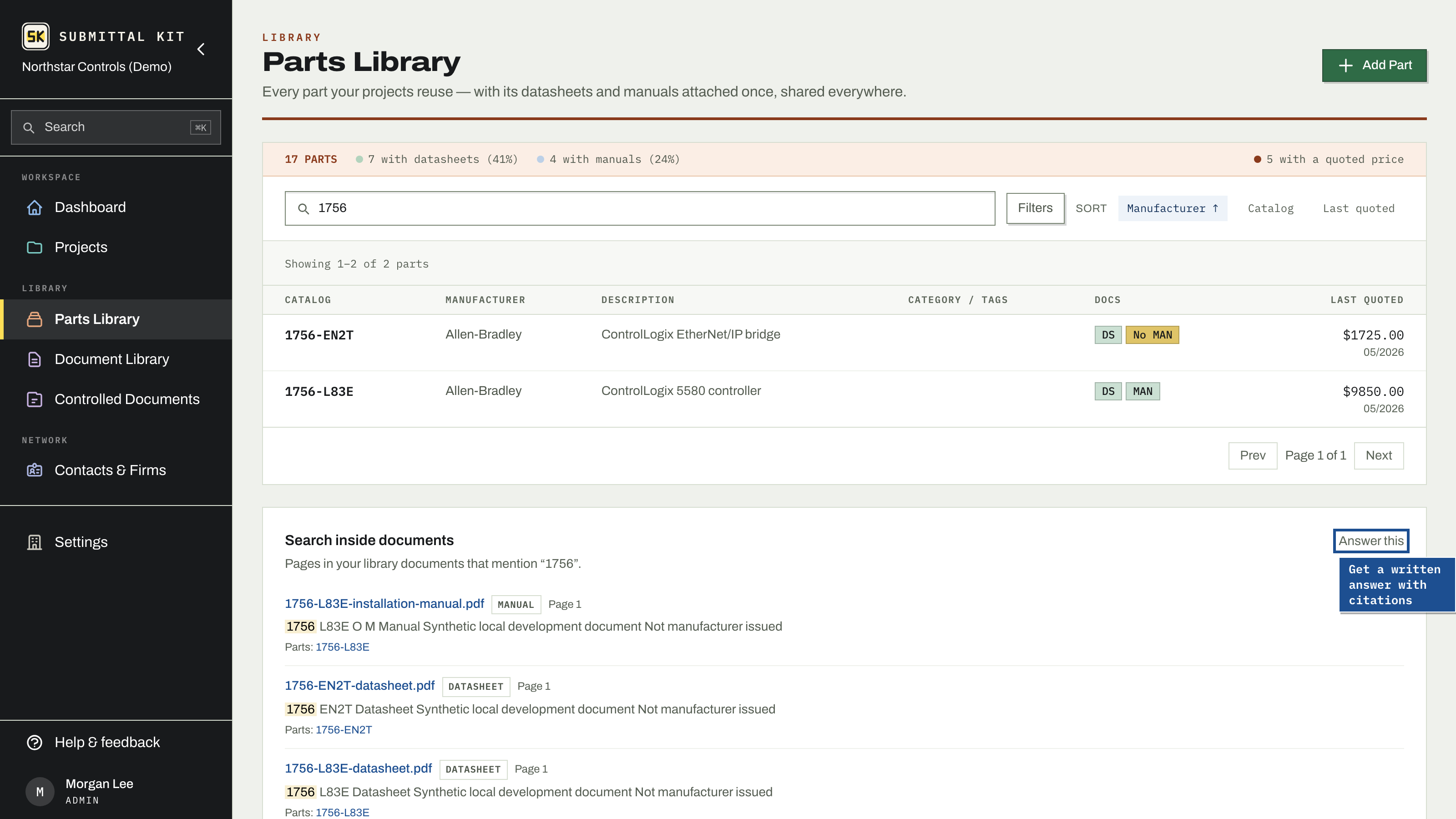
Type in the Parts Library search box and a Search inside documents panel appears below the part results, listing every library page that mentions your term. Each hit shows the file name, its document type, the page number, a snippet with your term in context, and the parts linked to that document. Clicking a hit opens the document at the matched page, not page one.
The Cmd+K palette reaches the same text from anywhere in the app, alongside parts, submittals, and everything else it finds. See Search everything.
Ask the library a question
When the hits panel has results, an Answer this button appears:
- Type your question or term into the search box.
- Press Answer this. Progress shows while your documents are searched.
- A written answer appears, assembled from the documents in your library, with sources cited by file name and page.
Each cited source is a link that opens the document at that page, so you can verify the answer against the sheet before it goes into an RFI response or a submittal note. The answer comes from your own library, not from anywhere else.
What's searchable
Every PDF in your Document Library is covered: uploads, documents accepted from a document hunt, all of it. There is no separate indexing step to remember.
Search for a catalog number to find every document that mentions a part, including competitor cross-reference tables and accessory sheets that were never linked to it.
Updated Aug 15, 2026
Can't find it? [email protected]