All guides
Getting started
What is Submittal Kit Create Your Workspace Your First Project Search Everything The Dashboard Help and What's New Abbreviations We UnderstandProjects & Schedule
Project Settings Schedule and MilestonesEquipment Register
Equipment Register Basics Import a BOM Equipment DocumentsParts & Library
The Parts Library Part Documents Find Datasheets The Document Library Search Inside DocumentsSubmittals
Create a Submittal Configure Sections Choose Equipment Scope Compile a Submittal O&M Manuals Submittal Numbering Cover Pages Package LayoutsRevisions & Review
Issue a Revision Submittal Log Returned Reviews Comment Response Log Record an External Submittal Share with an outside reviewerRFIs
RFI Basics RFI Log RFI LayoutsField & QA
Punch Lists As-Built RedlinesSpecifications & Scope
Upload Specifications Spec CheckProcurement & Change Orders
Quotes and Purchase Orders Coverage and Lead Times Change Orders Budget and SOVDirectory & Team
Firms & Contacts Team & Access Personnel & CertificationsSettings & Billing
Company Identity Library Vocabulary Billing and PlansIntegrations
Connect an AgentHelp Projects & Schedule
View as MarkdownProject Settings
The identifiers, dates, followers, and per-project overrides behind every printed page.
A cover sheet printing the wrong contract number is the kind of error a reviewer notices before the content. Project settings is where those numbers live once, so every transmittal, cover, and RFI prints them right.
Open the drawer
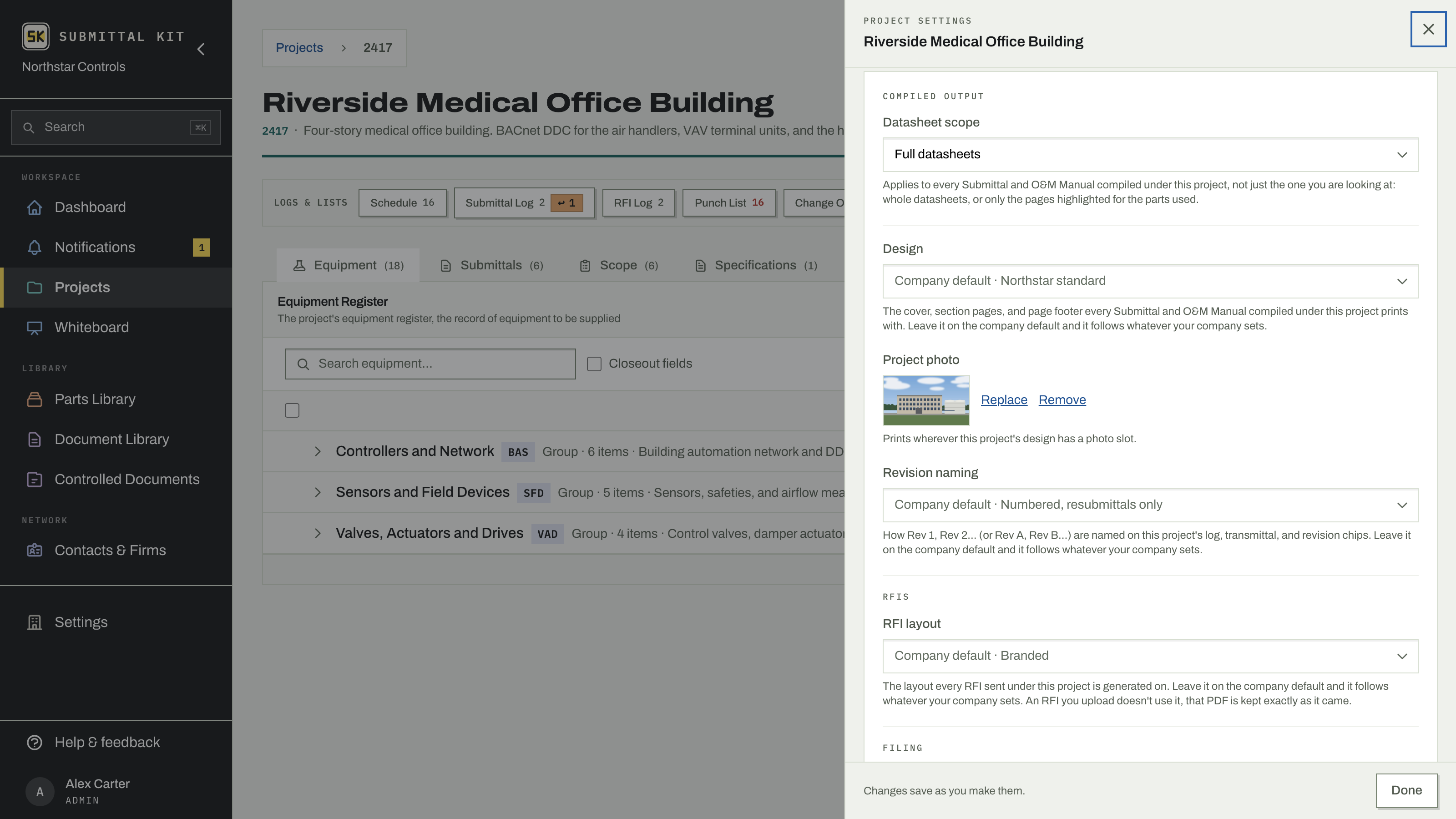
Click the gear button in the project header. The drawer autosaves as you type, and the header re-renders live so you see exactly what changes.
The project record
- Name and description.
- Identifiers. Your job number (prints wherever a cover references the project number), the owner's contract number, and the location (city and state, as transmittals expect).
- Client. The firm this project is contracted to, picked from your firm directory, plus their client job number, which prints as the RFI Job No. The number belongs to the client relationship, so pick the firm first.
- Schedule dates. Start, substantial completion, and final completion.
Per-project overrides
Company defaults cover most jobs; these settings bend one project without touching the rest.
- Datasheet scope. Full datasheets, or relevant pages only. Changing it invalidates existing compiles, so plan to recompile anything you haven't issued yet.
- Design. Which design this project's packages print with: the cover, the section pages, and the page footer.
- Project photo. The photo the design prints wherever it has a photo slot. Drop a JPEG or PNG, then Replace or Remove it later.
- Revision naming. How this project's revisions are labeled.
- RFI template. The layout this project's RFIs print on.
Followers
The Followers list controls who has this project on their dashboard and who hears about it by email. Add or remove teammates from the Followers modal on the project page; anyone can remove themselves, and admins can manage the whole list. Followers get an email when a schedule edit moves the finish date by a week or more, so slips surface even for people who weren't in the room.
Status and delete
Project status is Active, Complete, or Archived. It's a filing label, not a lock: the project stays fully usable in any status, and archived projects simply leave the project list and dashboard until restored.
Delete lives in the row menu on the Projects list. Deleting permanently removes the project's equipment, submittals, and uploaded documents. If revisions have already been issued, the project is archived instead, so the record of what you submitted survives.
Updated Sep 27, 2026
Can't find it? [email protected]