All guides
Getting started
What is Submittal Kit Create Your Workspace Your First Project Search Everything The Dashboard Help and What's New Abbreviations We UnderstandProjects & Schedule
Project Settings Schedule and MilestonesEquipment Register
Equipment Register Basics Import a BOM Equipment DocumentsParts & Library
The Parts Library Part Documents Find Datasheets The Document Library Search Inside DocumentsSubmittals
Create a Submittal Configure Sections Choose Equipment Scope Compile a Submittal O&M Manuals Submittal Numbering Cover Pages Package LayoutsRevisions & Review
Issue a Revision Submittal Log Returned Reviews Comment Response Log Record an External Submittal Share with an outside reviewerRFIs
RFI Basics RFI Log RFI LayoutsField & QA
Punch Lists As-Built RedlinesSpecifications & Scope
Upload Specifications Spec CheckProcurement & Change Orders
Quotes and Purchase Orders Coverage and Lead Times Change Orders Budget and SOVDirectory & Team
Firms & Contacts Team & Access Personnel & CertificationsSettings & Billing
Company Identity Library Vocabulary Billing and PlansIntegrations
Connect an AgentHelp Parts & Library
View as MarkdownPart Documents
Attach datasheets and manuals to a part and get your catalog number highlighted on every page that matters.
A reviewer opens a 40-page catalog cut sheet and flips pages looking for your model. Attach the datasheet to the part once, and every compiled package ships with your catalog number highlighted right on the sheet.
Attach a document
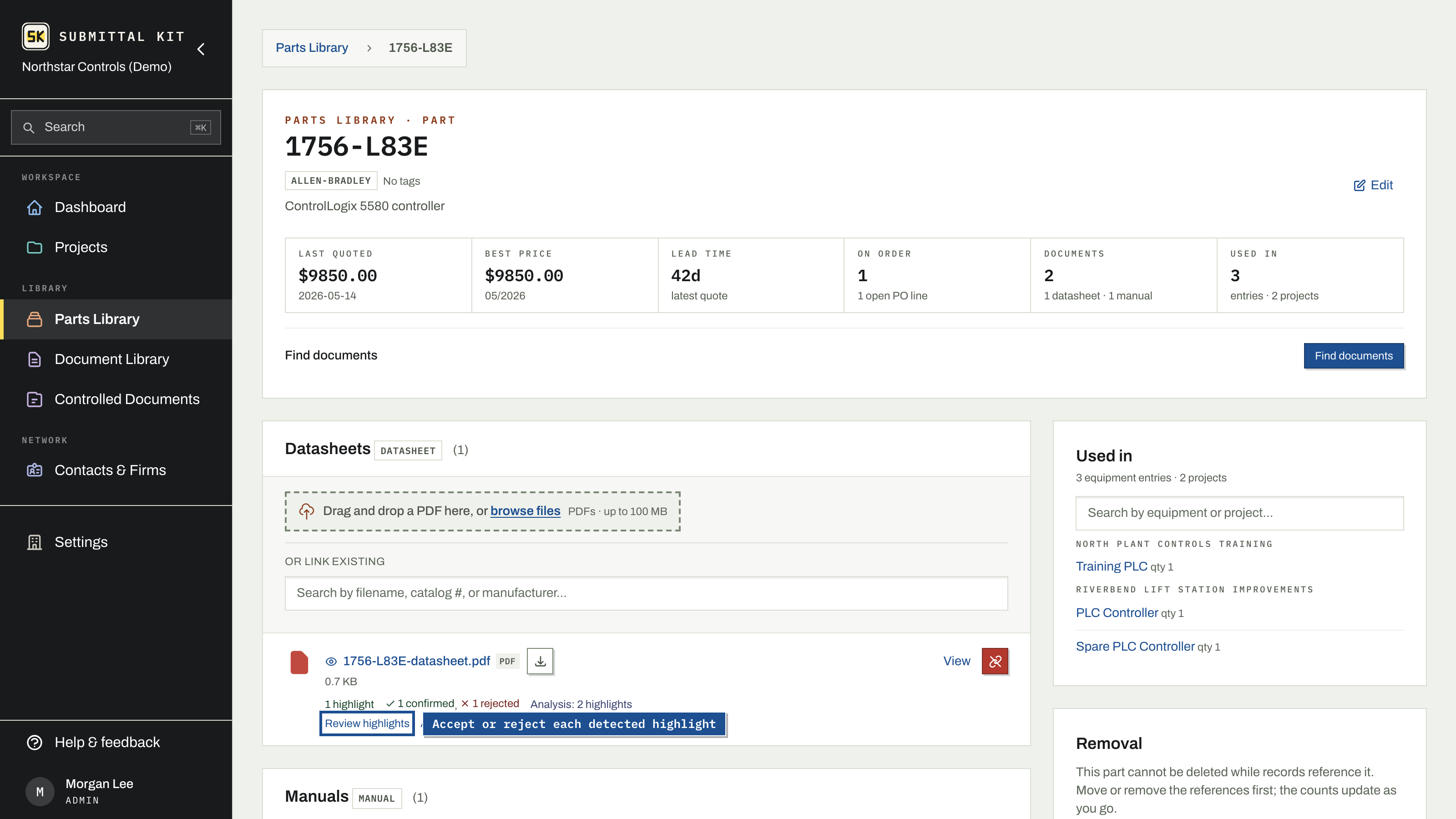
On the part page, each list (Datasheets, Manuals, Other) takes a direct PDF upload, or search or link existing to reuse a file already in your Document Library. Uploading the exact file you already have lands on the existing library entry instead of creating a copy. When a new upload merely reads the same as an existing document (a vendor re-download, typically), a Possible duplicate notice shows what it matched, lets you open both, and offers to link this part to the existing file instead, or keep both.
Highlights: your catalog number, found and checked
When a datasheet is attached, the pages are scanned for the part's catalog number and each match becomes a highlight. From the document's row you can go further:
- Analyze datasheet reads the pages to find the ones relevant to this part, which is what drives Relevant Pages Only packages.
- Verify highlights double-checks every found highlight against the page and rejects false positives, each with a written reason.
- Review highlights opens the evidence list: every highlight with its page, the matched text, and its verdict. Reject a bad one or restore a rejected one; a rejected highlight draws no mark and pulls no page.
When a package compiles, confirmed highlights are drawn on the datasheet, so the reviewer's eye lands on your model immediately. Every highlighted page opens with a legend band naming the part number and tags each highlight marks. When several parts share one datasheet, each part gets its own color in that legend, and highlights two parts share are drawn gray. The vendor page is scaled slightly to sit below the band, so nothing on it is covered. See Compile a submittal.
Always full sheet
By default, a submittal scoped to Relevant Pages Only ships just the pages that carry highlights. Check Always full sheet on a document to ship it complete every time, highlights still drawn. It's a per-document setting; see Choose equipment scope for how scope is set per submittal.
Annotate by hand
Annotate PDF opens the markup editor, where you highlight, note, or draw directly on the document. Manual marks live with the part and appear in every submittal and O&M manual that contains it.
Redact, under Remove on the tool rail, deletes an area from the document instead of marking it. What sits under the box is removed when the document compiles, for every part that links it, not just this one. As compiled switches the editor to the document with its redactions applied. See the Document Library for more.
A shared document notes how many other parts link to it. Its category and Always Full Sheet setting live on the file itself, so changing them from the Document Library warns you first with the affected counts.
Updated Sep 23, 2026
Can't find it? [email protected]