All guides
Getting started
What is Submittal Kit Create Your Workspace Your First Project Search Everything The Dashboard Help and What's New Abbreviations We UnderstandProjects & Schedule
Project Settings Schedule and MilestonesEquipment Register
Equipment Register Basics Import a BOM Equipment DocumentsParts & Library
The Parts Library Part Documents Find Datasheets The Document Library Search Inside DocumentsSubmittals
Create a Submittal Configure Sections Choose Equipment Scope Compile a Submittal O&M Manuals Submittal Numbering Cover Pages Package LayoutsRevisions & Review
Issue a Revision Submittal Log Returned Reviews Comment Response Log Record an External Submittal Share with an outside reviewerRFIs
RFI Basics RFI Log RFI LayoutsField & QA
Punch Lists As-Built RedlinesSpecifications & Scope
Upload Specifications Spec CheckProcurement & Change Orders
Quotes and Purchase Orders Coverage and Lead Times Change Orders Budget and SOVDirectory & Team
Firms & Contacts Team & Access Personnel & CertificationsSettings & Billing
Company Identity Library Vocabulary Billing and PlansIntegrations
Connect an AgentHelp Submittals
View as MarkdownChoose Equipment Scope
Decide which register entries and which of their documents a submittal package includes.
The slowest part of any submittal is deciding what goes in it, one cut sheet at a time. Here you scope entries from the Equipment Register into the package, and their documents follow automatically.
Include and exclude
Every entry on the submittal page carries an Included / Not included switch. To move faster, use the checkboxes: select several rows and the bulk bar lets you Include, Exclude, move them into a subgroup, or delete them in one action. Equipment excluded from this submittal stays on the register and in any other package that uses it.
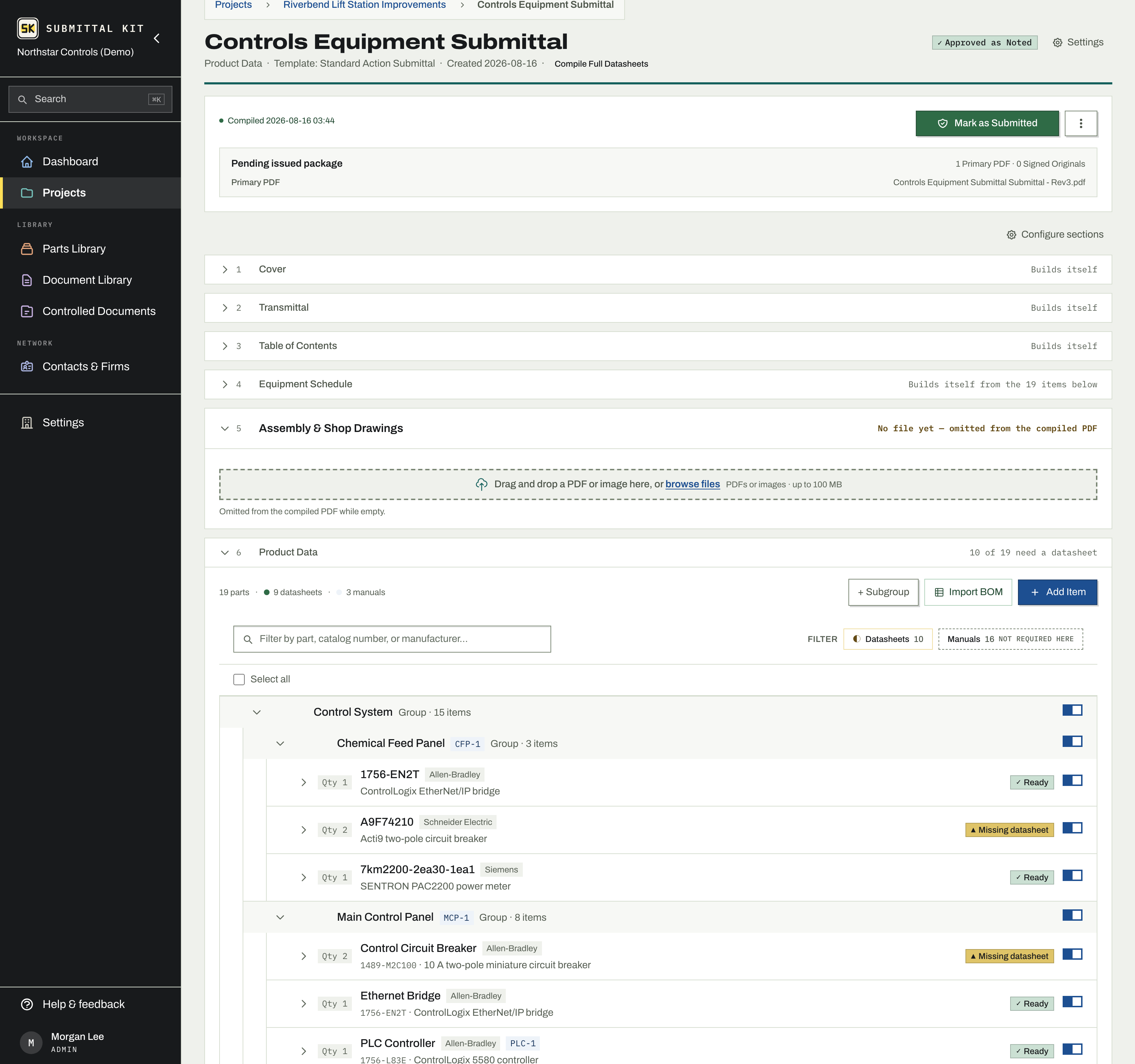
Grow the list without leaving the page
- + Subgroup adds a named group (a panel, a station) with its own equipment tag.
- Add Item searches your part library and adds parts directly to the package.
- If a part doesn't exist yet, create a brand-new one from the same panel; it joins the library too.
- Import BOM runs a BOM import scoped to this submittal, so imported rows land already included.
- Export BOM downloads the included equipment as an XLSX bill of materials, grouped the same way as the compiled Bill of Materials.
Choose each entry's documents
Expand an entry to see the documents it brings: datasheets and manuals from the part library, and the entry's own uploads such as site photos and configuration summaries. Include or leave out any individual file, or upload a document that belongs to this entry alone. Readiness counts at the top of the list show how many parts still lack a datasheet or manual, with filters to find them.
Use the same equipment elsewhere
Use elsewhere offers two moves:
- Share. One equipment list, live in both submittals. A change made in either shows up in both. This is how an O&M manual stays in step with the action submittal it came from.
- Clone. An independent copy as a starting point. Swap parts freely; the original is never touched.
Where documents land
Routing rules place each document into a section by its role or its part category: the template sets sensible defaults (datasheets into Product Data, for example), and each section in Configure sections can take a category rule of its own. For one stubborn file, set a per-document override to include, exclude, or move it; overrides are listed at the bottom of the section list, one click from removal. Rules that deliberately keep a category out appear as "Left out by default" chips.
Every scope change marks the last compiled PDF stale, so you can never issue a package that silently missed an edit.
Updated Aug 15, 2026
Can't find it? [email protected]