All guides
Getting started
What is Submittal Kit Create Your Workspace Your First Project Search Everything The Dashboard Help and What's New Abbreviations We UnderstandProjects & Schedule
Project Settings Schedule and MilestonesEquipment Register
Equipment Register Basics Import a BOM Equipment DocumentsParts & Library
The Parts Library Part Documents Find Datasheets The Document Library Search Inside DocumentsSubmittals
Create a Submittal Configure Sections Choose Equipment Scope Compile a Submittal O&M Manuals Submittal Numbering Cover Pages Package LayoutsRevisions & Review
Issue a Revision Submittal Log Returned Reviews Comment Response Log Record an External Submittal Share with an outside reviewerRFIs
RFI Basics RFI Log RFI LayoutsField & QA
Punch Lists As-Built RedlinesSpecifications & Scope
Upload Specifications Spec CheckProcurement & Change Orders
Quotes and Purchase Orders Coverage and Lead Times Change Orders Budget and SOVDirectory & Team
Firms & Contacts Team & Access Personnel & CertificationsSettings & Billing
Company Identity Library Vocabulary Billing and PlansIntegrations
Connect an AgentHelp Submittals
View as MarkdownCover Pages
Design the cover every compiled package opens with, and let your office's letterhead fill it automatically.
The cover page is the first thing a reviewer sees, and on most jobs it's a Word file from the last project with three fields somebody forgot to update. Design it once under Settings > Package design and every compiled package wears it, fields filled from the project.
The cover editor
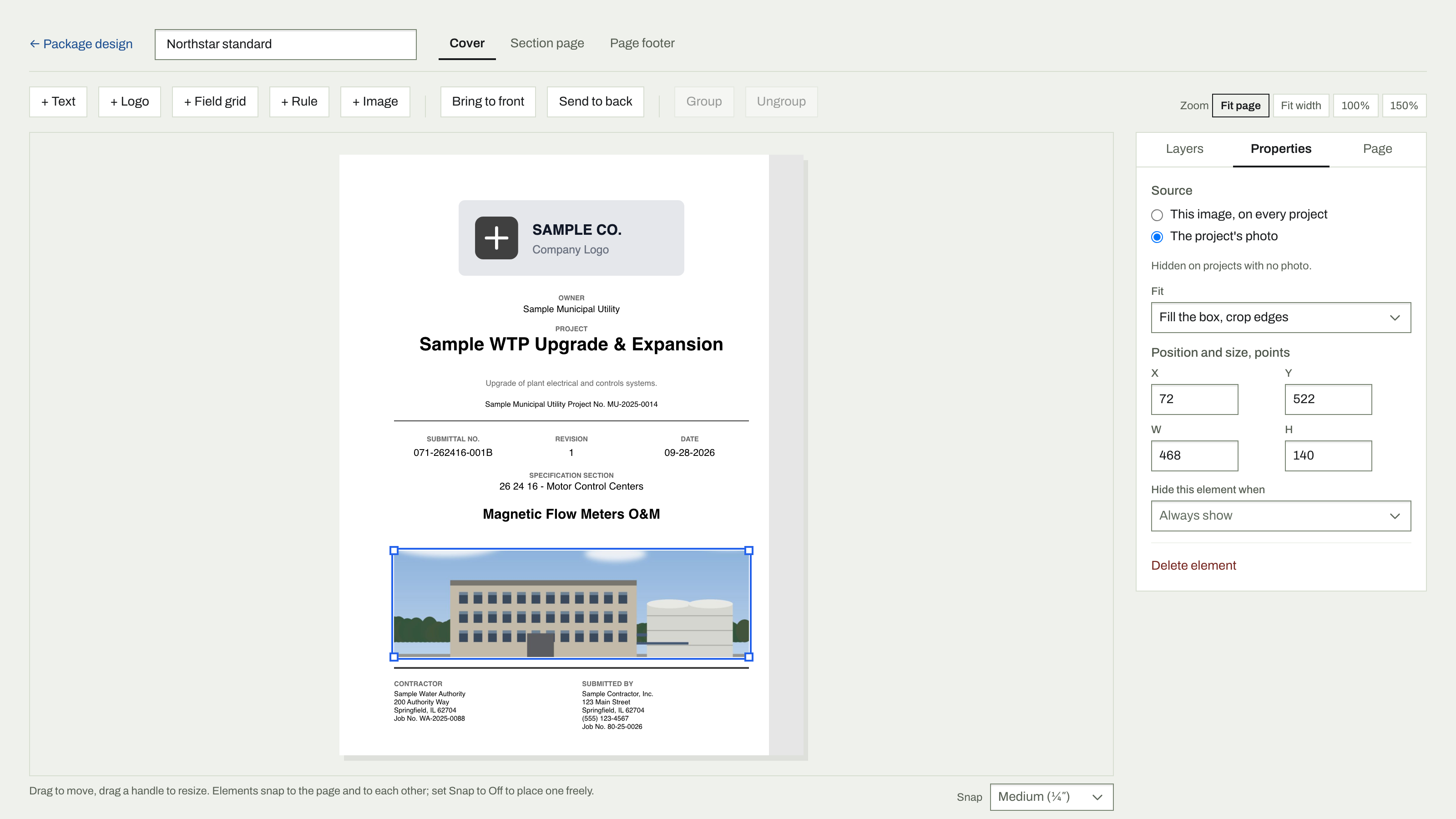
Covers are not fixed layouts. In the free-layout editor you place everything yourself:
- Click New design, or Duplicate to edit on a built-in to iterate on it.
- Click Edit to open the editor. Add a logo, titles, and project fields, then drag anything anywhere on the page; smart guides snap elements into line, and handles resize them. A text box keeps its size: longer text shrinks to fit it, and text too long even at 7 pt ends in "...".
- Text is built from tokens. Type
{for the list: project number, submittal number, spec section, the submittal's{cover_note}from its Transmittal section, and the rest fill in per package, and a[bracketed]part drops out when its tokens are blank. - Changes save automatically, and a live preview shows the cover as it will print.
Photos and images
Each project can hold one photo, set in Project settings under Project photo. Every built-in prints it below the title, and a project with no photo prints the cover as before. In the editor, Image places a picture on the cover or section page: either the project's photo or one image you upload that prints on every project.
Section pages and the page footer
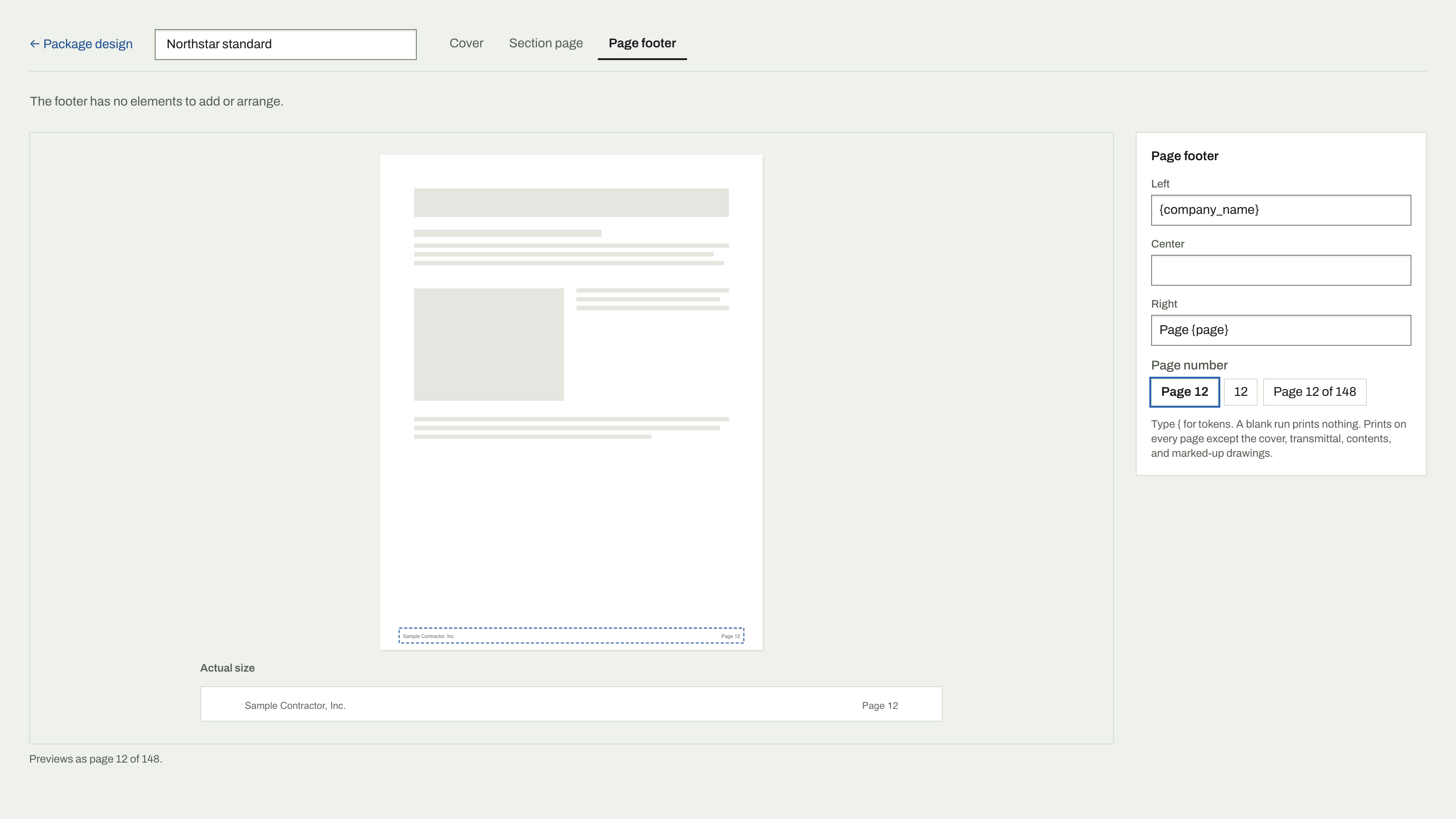
A design also draws the page in front of every section and the footer on every page after the front matter. The Section page tab edits the section page like the cover, with {section_title}, {section_number}, and a Tab rail that steps the numbered tab down the page edge. Start from copies another design's section page. The Page footer tab sets the footer's Left, Center, and Right text; {page} and {page_count} print "Page 3 of 48", or just "3".
Manage the library
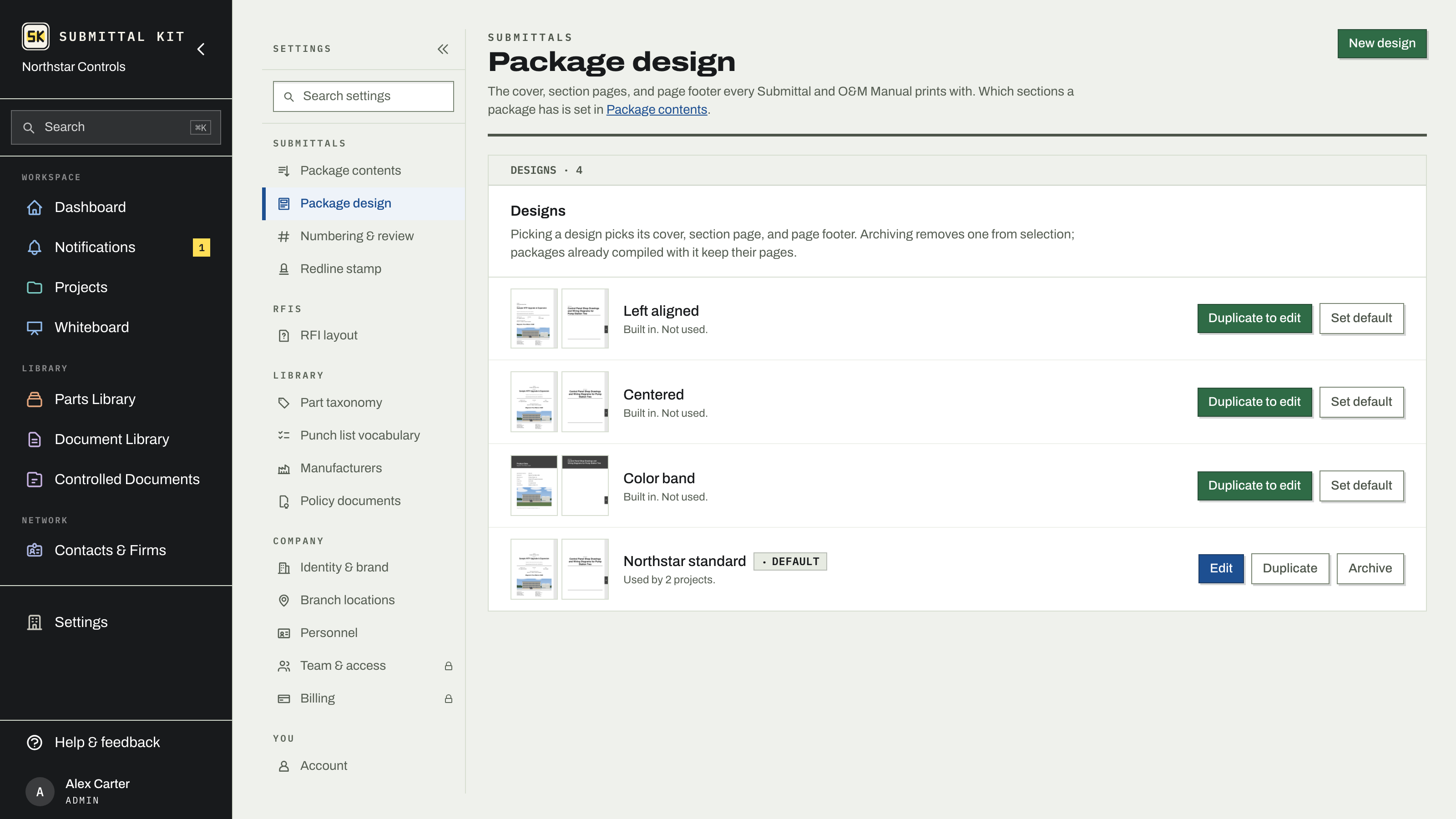
Three built-ins come with every account: Left aligned, Centered, and Color band. New companies start on Centered.
Every design in the list shows its cover and section page side by side, with the number of projects that print with it. Set default makes a design the one every new Submittal and O&M Manual prints with. Duplicate copies any design, built-in or your own, as a starting point. Archive removes one from selection without breaking the submittals that used it, and archived designs can be restored anytime. A design a project still picks can't be deleted; pick another design on that project first. The {submittal_number} and type tokens tie covers into your numbering scheme, and your logo and brand colors come from Company identity.
Letterhead that follows the office
Companies with more than one office define them under Settings > Branch locations. Each project picks which office speaks for it, and that branch's address and phone flow onto compiled covers and generated pages automatically. Nobody edits letterhead by hand per package, and a project issued from the Denver office never goes out wearing the Houston address. At a single-branch company this is invisible; the one office is assigned on its own.
Per-project override
A project can step off the company default: in Project settings, the Design control picks a specific design for every Submittal and O&M Manual compiled under that project. Leave it on Company default and the project follows whatever your company sets, including future changes.
Compile a draft to see the finished cover with real project data before anything is issued; see Compile a submittal.
Updated Sep 27, 2026
Can't find it? [email protected]